Yamera (Manual Camera)
Manual Focus, Exposure and WB.
How much does Yamera (Manual Camera) cost?
Prices are current as of 2 Oct 2026.
1 one-time purchase from $1.99
In the United States, Yamera (Manual Camera) has 1 one-time purchase priced $1.99.
| Product | Price |
|---|---|
| Purchase Pro Version | $1.99 |
See what Yamera (Manual Camera) costs in all 175 countries →
10+ alternatives to Yamera (Manual Camera)
| Yamera (Manual Camera) |   Filmroll - Vintage Camera Filmroll - Vintage Camera |   Pro Camera-Omnipotent Camera Pro Camera-Omnipotent Camera |   Night Camera: Low light photos Night Camera: Low light photos |   Manual Camera Pro + RAW Photo Manual Camera Pro + RAW Photo |   Camera Beauty 360 - Selfie Cam Camera Beauty 360 - Selfie Cam | 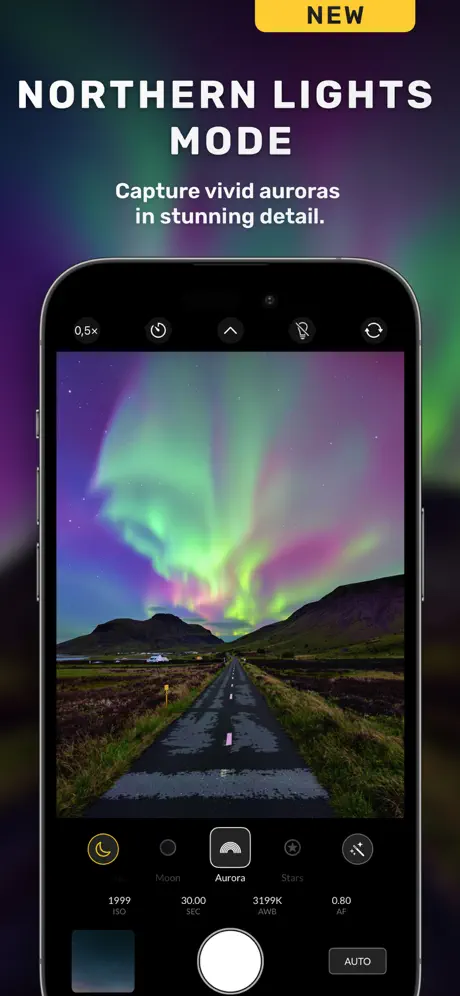  Nightcam Camera: Night Mode Nightcam Camera: Night Mode | 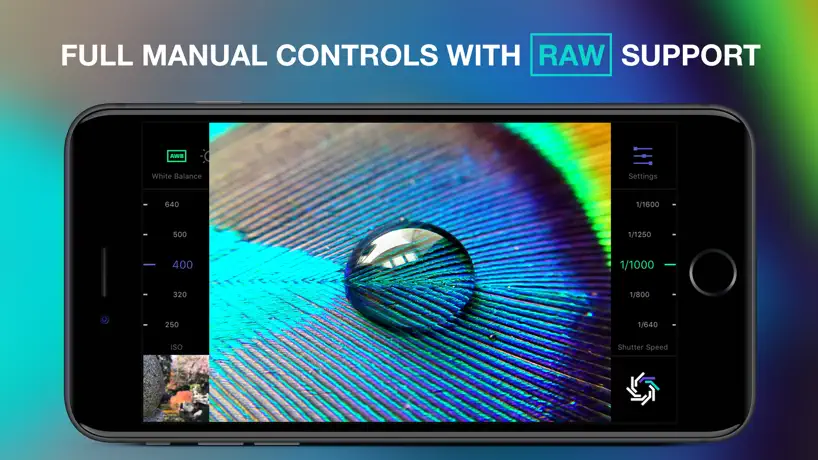  Manual Camera, Pro DSLR | RAW+ Manual Camera, Pro DSLR | RAW+ | 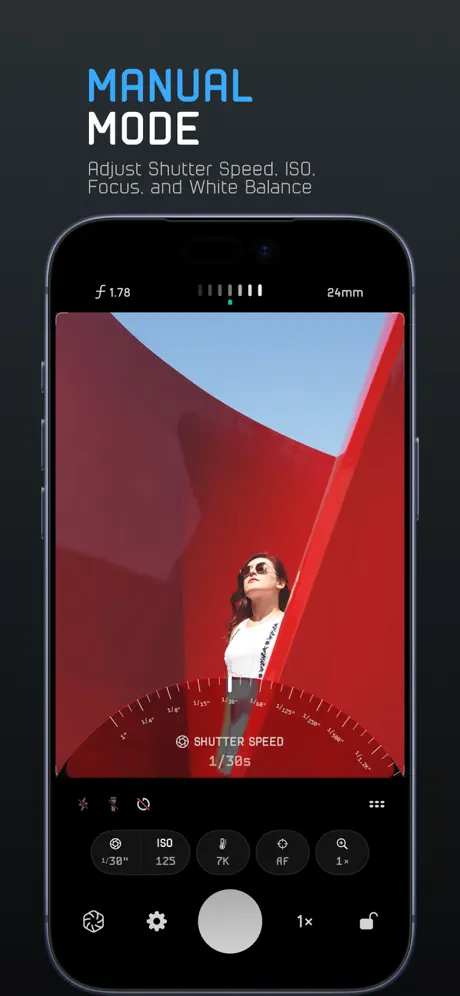  Pro Camera RAW: Modus ProCam Pro Camera RAW: Modus ProCam | 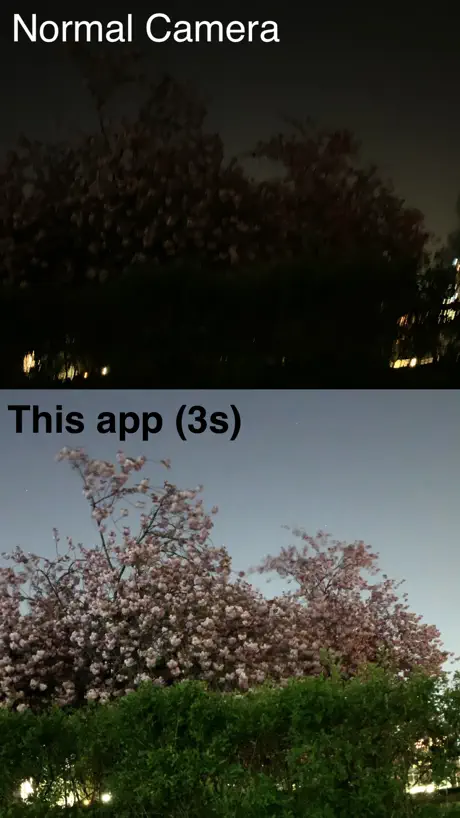  Easy Long Exposure Camera Easy Long Exposure Camera | 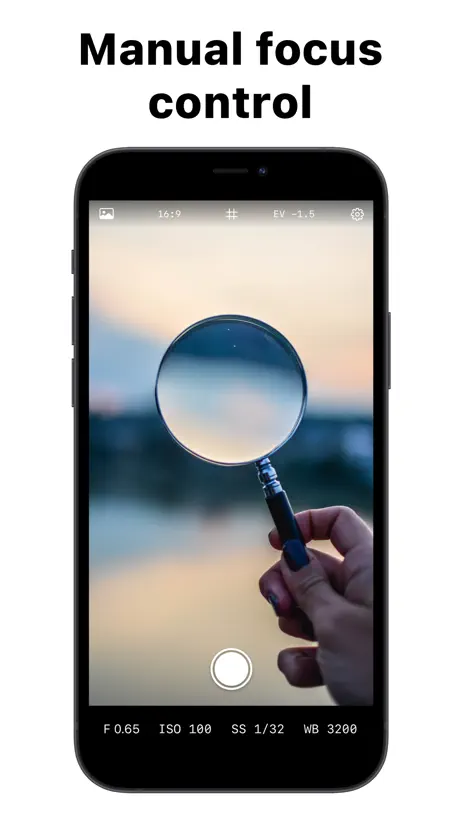  Manual Camera – Focus, ISO, WB Manual Camera – Focus, ISO, WB | |
|---|---|---|---|---|---|---|---|---|---|---|---|
| Rating / 5 | 4.6 | 4.8 | 4.5 | 4.4 | 4.6 | 4.5 | 4.1 | 4.4 | 4.5 | 4.2 | 4.4 |
| Reviews | 9.6K | 255K | 83K | 27K | 17K | 11K | 8.5K | 8.3K | 5.7K | 3.2K | 2.3K |
| Released | 2015 | 2018 | 2017 | 2014 | 2016 | 2016 | 2020 | 2016 | 2021 | 2019 | 2020 |
| Monthly price | — | $0.49 | — | $1.99 | $4.99 | — | $7.99 | $4.99 | — | — | — |
| Annual price | — | $4.49 | — | $5.99 | — | — | $24.99 | $9.99 | $9.99 | — | $5.99 |
| One-time price | $1.99 | $5.99 | — | $9.99 | $2.99 | — | $49.99 | $19.99 | $5.99 | $2.99 | — |
The going rate for each plan in United States, in its own currency, shaded from the cheapest price on the row to the dearest. Plans fewer than four in ten of the priced apps sell are left out.
Yamera (Manual Camera) reviews
4.6 out of 5, based on 9,580 reviews.
What people like
- Manual controls beat the standard camera app.
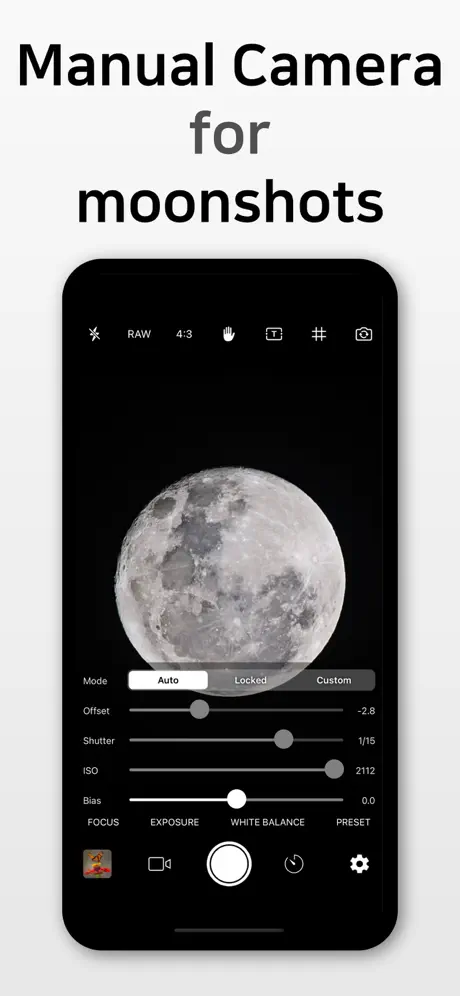
- Great for taking clear photos of the moon.
- One-time fee instead of annoying subscriptions.
- Save presets so you don't re-adjust every time.
What they complain about
- Settings often reset when you leave the app.
- App crashes frequently on newer iPhone models.
- Bad ads appear even after paying for pro.
- White balance changes unexpectedly after switching apps.
Take Back Control of Your Camera
I love this app! It has so many settings I can tweak as I need. I can manually adjust focus, warmth, saturation, exposure. I can snap a photo with a visible timestamp if I want. I can save camera presets so I don’t need to adjust them every time I need to take a photo of the stars. But there’s also an auto mode to take care of all that for you if you don’t want to tweak things, and it consistently outputs higher quality photos than the standard Apple camera. The only thing I wish it would do is give an option to capture video without audio 🙏🏼
Suggestive Ads are a No Go!
I was hoping to use this app as a recommendation to my smartphone photography students for learning basic manual control. As soon as I downloaded it I was confronted by suggestive, and even nude photos of women at the bottom of the screen. There is no way I could suggest this app to my students because of this! And, please don’t suggest that they buy the app to get rid of the ads.
Is good but it could be great wish small tweaks
This app is way better than the native IPhone camera app. It lets you change some settings for different types of photos and it doesn’t switch automatically between lenses when you’re trying to do close-ups with the zoom or using macro or fish-eye lens attachments; but it allows only some controls but doesn’t have options for other critical ones like shutter speed or aperture. And even the setting it lets you control come in ranges similar to low, medium and high, instead of allowing full control for better results.
Got for white balance lock. Doesn’t support macro
I like the white balance lock. But have to switch back to built in camera for macro. Can’t recommend because of that.
Good but manual focus not working
I bought the pro version 5.5 and it mostly works on my iPhone 12, iOS 18.7.7. BUT the manual focus is blocked. When I press “focus” the “Auto” and “Locked” modes are crossed out and the “position“ slider is locked. BTW, I would have preferred to report this problem privately but I didn’t find an email address for AppMadang.
Niiiise
Pretty good i but i wish i could take 48mp and adjust exposure at the same time
Doesn’t give control for shutter.
Doesn’t give control for shutter. So how is it manual control?
Great simple app for product photos- issues with iPhone
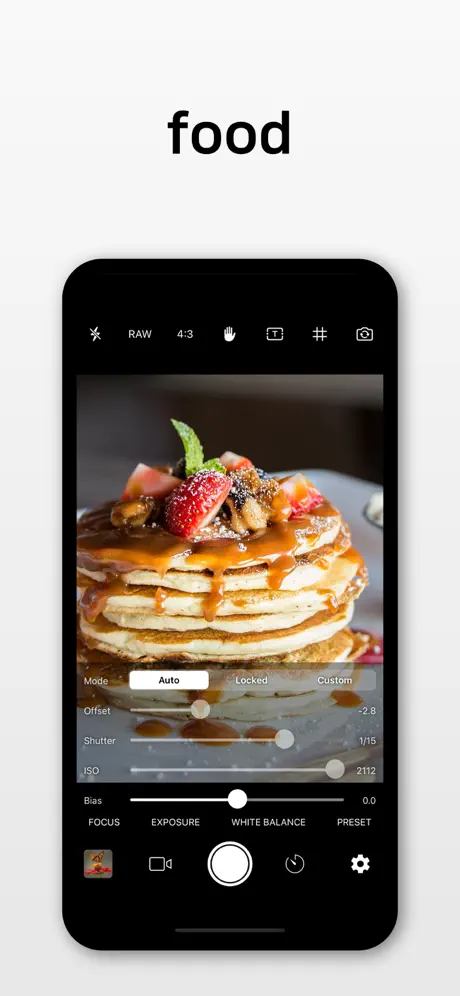
Overall this has been a great app for product photos. Since I use a lightbox it’s super convenient to be able to save settings and reuse them. I like that you can do a one time fee and they don’t have some crazy subscription junk that I wouldn’t be able to justify. Only thing is it seems to behave a little weirdly with iPhones 13 to 15 (or at least that’s as far as I’ve gotten phone wise). Even if you’re using the same exact settings, some photos will get these big white splotches that aren’t visible before you take the photo. I’m not an expert photographer (although I’m not a newbie either) so it could be something in the settings. But I didn’t have this issue using the preset before I upgraded my iPhone so i suspect it’s some kind of glitch
Used to love it; with 14 pro some issues
I adored this app and used it forever with my iPhone 11. Now I have upgraded to the 14pro and it creates blaring white areas in my photos. Plus, the colors I see when I take the photo in Yamera are not the colors that are shown in the final image that gets saved to my phone. It’s like I will take one photo in Yamera, and a crappier version of the photo is what I will actually get. I’ve tried a few camera apps and this seems to be happening across the board, and all in all I am pretty disappointed.
Good camera, bizarre inappropriate ads
I’m using this for astrophotography and it’s been good for basic adjustments where the native camera app won’t let you adjust the exposure enough for planets on dark sky backgrounds. But boy howdy will it show some weird ads across the bottom- I’m sure you use a third party service for ads but having horrendously inappropriate ads pop up while you’re screensharing with 20 students isn’t ideal.
Helped me focus on the eclipse!
Had this app for years now, so useful
No manual setting freedom
Misleading while setting expectations to allow manual settings. Although locking in settings under a category they go back to auto Mac when you select a setting from a different tab/category. Waste of time this app is only stealing your data
Camera settings
Everything is perfect, there’s shutter speed and ISO etc. but there’s no Kelvin scale and the overall UI seems kinda bland, some animations or something would be nice
갑자기 이상해요
예전에는 안그랬는데 요새 쓸려고 보니까 찍고나면 밝기가 찍을때보다 훨씬 어두워지고 화질도 갑자기 꾸질꾸질 해짐
QR code scanner
please add the QR code scanning function while using the camera
Perfect for what i was looking for!!
Keep up the updates, has the basic for creating content!
No HDR in photo mode.
It can't shoot HDR in RAW photography mode. Dynamic range is terrible. Also, it records blacks as gray in non-HDR video mode.
다 좋은데 커스텀 조절 패널이 고정되어 있어서 불편해요ㅠ
패널이 나와있으니 화면 구도 잡기가 어려워요ㅠㅠ
업데이트 수정해주세욜
업데이트?뒤 전면 카메라는 광각렌즈만 적용돼서 셀카 찍을 때 불편해요. 또 어두운곳에서 확대에서 찍으면 지지직거리면서 화질이 깨집니다., 전에는 안 그랬는데 업데이트 후 더 안좋아졌어요,, 아쉽습니다ㅜㅜ
잘사용하고있었는데...
잘사용하고 있엇는데 아이퐁 카메라랑 화질이 똑같았었는데 갑자기 화질이 지글지글 다 깨져요 ㅇ왜그럴까요 HDI랑 딥퓨전 등 다켜놨습니다 답변부탁드려요
Fantastic! But not perfect.
I film my painting process and having true and consistent color is very important to me. That is why having control of the white balance in this app is so great! However,…if I leave the app for any reason at all, when I return to my process, the white balance has changed and is now incorrect. I then need to to recalibrate it with a white sheet of paper and relock the white balance function. Fix this feature so that white balance doesn’t change when you leave the app, and it will certainly be a 5 star app for me!
Waste of time
I wanted to take a long exposure at night. There is a slider to change the shutterspeed and when you move it all the way to the right it will more itself back to 1/15 second even when you “lock it” And then it will also change the iso. This is almost a manual camera app but they have not figured it out yet.
pretty good
i really like how the app works. its really easy to use and teaches you a lot. really do recommend. only thing is it has trouble focusing. small problem, but when it works its great
Timestamp
Please fix the year timestamp
Moon is not coming when I film it
Hi the moon is not coming when I filmed it because when I try everything else the moon is not coming
Apple Watch Trigger
I hope you can make an Apple Watch record toggle or trigger button for convenience when recording video.
Ruined my camera
I Have a i phone after downloading, my Apple phone says it dose not recognize camera as a apple product. Don't recommend this app at all. My camera dose not take pictures anymore, going to cost me 100$ insurance claim. Don't download!!!
Help
When I have the settings I want, how do I get rid of them? They take up half my screen.
OIS NOT WORKING ON VIDEO MODE
Please fix it!!!
광학줌 활용안되는거같네요
기본카메라가지고 줌쓰는거같네요 해지기전까지 기본카메라보다좀떨어지고 야간에달찍을때최적화된거같네요 각카메라 광학적용좀시켜주시면 좋을듯
Perfect Moon pictures
This App is incredible for taking pictures of the moon, I have taken so many and they all look perfect!
Deal breaker
Has to be “verified “ with a credit card.
Almost perfect for me
Has everything I was looking for, except it won’t allow date stamp or geo stamp on videos. Only allows to use stamps on photos.
Annoying
Doesn’t save your custom settings on exit for some reason. Also needlessly difficult and inaccurate to use sliders for adjusting settings.
Payment Successful, Purchase Failed
Hey Team, Hope you are doing great. I need your help/support regarding the purchase I tried to make on the Yamera App. I was trying to upgrade it to Pro version and I made the payment. The payment was successful however, my purchase was failed. Please help !!!
Fantastic App! Feature request?
Hello, I’ve been using this app for a few years now and it has worked beautifully! I was wondering if I could request a feature? Many of the pics I take are around 1/10 shutter speed and this can be a bit difficult to set with the slider. I was wondering if there can be a way to more finely tune shutter speed, maybe even a pop up window to type in the desired shutter speed. Thank you!
Doesn’t support macro lens
They haven’t kept this app updated to support the iPhone 13 macro lens.
Awesome... but...
I’ve been using the pro version for over a year now. It’s an incredible app, as other comments say you can take a clear picture of the moon. However, when recording video, sometimes it switches from 60fps to 240fps. I use it to record myself in classes I teach, so there’s no one looking at the camera. I had to repeat a 30 minute video more than once. Would love if they can fix this problem.
Almost great.....
Just tried this for the first time. Thought it was great that I could adjust shutter speed and ISO but when I press “locked” the settings change. What’s that about? I would like to lock the settings because they seem to change at random.
결제를 했는데
구입항목에 나타나지 않습니다. 취소처리도 안 되네요
Downloaded to film a zoetrope vinyl
Needed to access really high shutter speed to film zoetrope animation on a new record I purchased and this app gave me 100% control over my stock iPhoneX video settings.
Do not buy.
Used the free app for a month before purchasing and loved it.. now that I paid $2 it can’t even open without crashing. I’ve tried restarting my phone, deleting and reinstalling the app, and nothing has changed. Purchasing the app made it unusable on my iPhone X. I’ll be seeking a refund.
Haptic Feedback and better rotate camera button
If the rotate camera button was instant it would be far more amazing. Also I would recommend putting the rotate camera button at the bottom of the app for ease of use. Shutter sounds and or haptic feedback when taking a phot is kinda like a must these days. Please add this. I bought the full version.
Menu won't disappear
It gets in the way of composing your pic. It has a couple of useful features but it's not worth it to download. App seems amateurish.
Can you add a Chinese version?
Can you add a Chinese version?
Just what I was looking for.
Love this app. Better than the app that comes with your phone. The app that comes with the phone tries to over simplify the UI, but in doing so makes many things difficult or impossible to do.
Was great until they messed up the flash
Crashes incredibly often. This app is great for manual focus and I used it to take pictures of crystals quite often, they have changed their flash light system and now you cannot have it turned on before you take the picture which effectively made the app useless to me Bring back the flash option to where you can have it on before you even take the photo so you can see what it looks like with flash before the picture takes. If it's not fixed I wouldn't recommend downloading at all
I like this app
but adjusting values using scroll is not accurate enough. and this app seems not remember the settings, when leave this app and switch back, user must set the values again, which makes it can not be used in real work.
Ugly Logo
Design a better logo. This one makes the home screen look ugly.
Crashing everytime
It keeps crashing in iphone xs max And not letting me take a single pic 😐
Yamera (Manual Camera) price by country
A one-time purchase costs $1.60 in Israel and $3.09 in Hungary — 1.9× more for the same thing. Below is the going rate for each plan in every country that sells it — the middle price of what the app charges there, in the country's own currency with the dollar equivalent beneath it.
| Country | One-time |
|---|---|
| Afghanistan | $1.99 |
| Albania | $1.99 |
| Algeria | $1.99 |
| Angola | $1.99 |
| Anguilla | $1.99 |
| Antigua And Barbuda | $1.99 |
| Argentina | $1.99 |
| Armenia | $1.99 |
| Australia | A$2.99$2.08 |
| Austria | €1.99$2.26 |
| Azerbaijan | $1.99 |
| Bahamas | $1.99 |
| Bahrain | $1.99 |
| Barbados | $1.99 |
| Belarus | $1.99 |
| Belgium | €1.99$2.26 |
| Belize | $1.99 |
| Benin | $1.99 |
| Bermuda | $1.99 |
| Bhutan | $1.99 |
| Bolivia | $1.99 |
| Bosnia & Herzegovina | €1.99$2.26 |
| Botswana | $1.99 |
| Brazil | R$12.90$2.48 |
| British Virgin Islands | $1.99 |
| Brunei Darussalam | $1.99 |
| Bulgaria | €1.99$2.26 |
| Burkina Faso | $1.99 |
| Cambodia | $1.99 |
| Cameroon | $1.99 |
| Canada | CA$2.99$2.17 |
| Cape Verde | $1.99 |
| Cayman Islands | $1.99 |
| Chad | $1.99 |
| Chile | CLP 1,990$2.04 |
| China | CN¥15.00$2.23 |
| Colombia | COP 9,900$2.97 |
| Congo | $1.99 |
| Congo, Democratic Republic | $1.99 |
| Costa Rica | $1.99 |
| Cote Divoire | $1.99 |
| Croatia | €1.99$2.26 |
| Cyprus | €1.99$2.26 |
| Czech Republic | CZK 49.00$2.27 |
| Denmark | DKK 19.00$2.88 |
| Dominica | $1.99 |
| Dominican Republic | $1.99 |
| Ecuador | $1.99 |
| Egypt | EGP 99.99$1.92 |
| El Salvador | $1.99 |
| Estonia | €1.99$2.26 |
| Fiji | $1.99 |
| Finland | €1.99$2.26 |
| France | €1.99$2.26 |
| Gabon | $1.99 |
| Gambia | $1.99 |
| Georgia | $1.99 |
| Germany | €1.99$2.26 |
| Ghana | $1.99 |
| Greece | €1.99$2.26 |
| Grenada | $1.99 |
| Guatemala | $1.99 |
| Guinea-bissau | $1.99 |
| Guyana | $1.99 |
| Honduras | $1.99 |
| Hong Kong | HK$18.00$2.29 |
| Hungary | HUF 999$3.09 |
| Iceland | $1.99 |
| India | ₹199.00$2.07 |
| Indonesia | IDR 29,000$1.64 |
| Iraq | $1.99 |
| Ireland | €1.99$2.26 |
| Israel | ₪4.90$1.60 |
| Italy | €1.99$2.26 |
| Jamaica | $1.99 |
| Japan | ¥300$1.91 |
| Jordan | $1.99 |
| Kazakhstan | KZT 999.00$2.27 |
| Kenya | $1.99 |
| Kosovo | €1.99$2.26 |
| Kuwait | $1.99 |
| Kyrgyzstan | $1.99 |
| Lao Peoples Democratic Republic | $1.99 |
| Latvia | €1.99$2.26 |
| Lebanon | $1.99 |
| Liberia | $1.99 |
| Libya | $1.99 |
| Lithuania | €1.99$2.26 |
| Luxembourg | €1.99$2.26 |
| Macao | $1.99 |
| Macedonia | $1.99 |
| Madagascar | $1.99 |
| Malawi | $1.99 |
| Malaysia | MYR 9.90$2.43 |
| Maldives | $1.99 |
| Mali | $1.99 |
| Malta | €1.99$2.26 |
| Mauritania | $1.99 |
| Mauritius | $1.99 |
| Mexico | MX$39.00$2.30 |
| Micronesia | $1.99 |
| Moldova | $1.99 |
| Mongolia | $1.99 |
| Montenegro | €1.99$2.26 |
| Montserrat | $1.99 |
| Morocco | $1.99 |
| Mozambique | $1.99 |
| Myanmar | $1.99 |
| Namibia | $1.99 |
| Nauru | $1.99 |
| Nepal | $1.99 |
| Netherlands | €1.99$2.26 |
| New Zealand | NZ$3.99$2.25 |
| Nicaragua | $1.99 |
| Niger | $1.99 |
| Nigeria | NGN 3,200.00$2.41 |
| Norway | NOK 29.00$3.02 |
| Oman | $1.99 |
| Pakistan | PKR 500$1.81 |
| Palau | $1.99 |
| Panama | $1.99 |
| Papua New Guinea | $1.99 |
| Paraguay | $1.99 |
| Peru | PEN 9.90$2.88 |
| Philippines | ₱129.00$2.06 |
| Poland | PLN 9.99$2.59 |
| Portugal | €1.99$2.26 |
| Qatar | QAR 7.99$2.20 |
| Romania | RON 9.99$2.15 |
| Russia | RUB 199.00$2.38 |
| Rwanda | $1.99 |
| Sao Tome & Principe | $1.99 |
| Saudi Arabia | SAR 9.99$2.66 |
| Senegal | $1.99 |
| Serbia | €1.99$2.26 |
| Seychelles | $1.99 |
| Sierra Leone | $1.99 |
| Singapore | SGD 2.98$2.33 |
| Slovakia | €1.99$2.26 |
| Slovenia | €1.99$2.26 |
| Solomon Islands | $1.99 |
| South Africa | ZAR 39.99$2.44 |
| South Korea | ₩3,300$2.43 |
| Spain | €1.99$2.26 |
| Sri Lanka | $1.99 |
| St. Kitts and Nevis | $1.99 |
| St. Lucia | $1.99 |
| St. Vincent & The Grenadines | $1.99 |
| Suriname | $1.99 |
| Swaziland | $1.99 |
| Sweden | SEK 29.00$2.90 |
| Switzerland | CHF 2.00$2.40 |
| Taiwan | NT$60.00$1.88 |
| Tajikistan | $1.99 |
| Tanzania | TZS 5,900.00$2.23 |
| Thailand | THB 79.00$2.35 |
| Tonga | $1.99 |
| Trinidad and Tobago | $1.99 |
| Tunisia | $1.99 |
| Turkey | TRY 99.99$2.04 |
| Turkmenistan | $1.99 |
| Turks and Caicos | $1.99 |
| Uganda | $1.99 |
| Ukraine | $1.99 |
| United Arab Emirates | AED 7.99$2.18 |
| United Kingdom | £1.99$2.64 |
| United States | $1.99 |
| Uruguay | $1.99 |
| Uzbekistan | $1.99 |
| Vanuatu | $1.99 |
| Venezuela | $1.99 |
| Vietnam | ₫59,000$2.27 |
| Yemen | $1.99 |
| Zambia | $1.99 |
| Zimbabwe | $1.99 |
Yamera (Manual Camera) FAQ
- Is Yamera (Manual Camera) free?
- Yes. The app and its basic features are free, in all 175 countries it sells in. Premium features are paid: they start from $1.99 (US), across 1 one-time purchase.
- Does Yamera (Manual Camera) have a free trial?
- No. None of its offers (US) come with a free trial.
- Where is Yamera (Manual Camera) cheapest?
- A one-time purchase costs ₪4.90 (≈$1.60) in Israel and HUF 999 (≈$3.09) in Hungary, its cheapest and dearest countries.
- What are the best alternatives to Yamera (Manual Camera)?
- Filmroll - Vintage Camera (4.8 from 254,669 reviews, premium from $0.49), Pro Camera-Omnipotent Camera (4.5 from 82,685 reviews) and Night Camera: Low light photos (4.4 from 26,807 reviews, premium from $1.99).
Yamera (Manual Camera) download
Last updated 7 days ago.
Yamera (Manual Camera) sells in 175 countries. It was released 11 years and 8 months ago, on 27 Jan 2015. It holds a 4.6 rating from 9,580 reviews.
Supports 3 languages: English, Japanese, Korean.
How much does Yamera (Manual Camera) make?
Third-party estimates for the last 30 days, worldwide — not the store's own figures, which Apple publishes for nobody.
Revenue by plan
- One-time 100%
Revenue by country
- South Korea 43%
- United States 13%
- Japan 10%
- Indonesia 9%