
WiFi QR Connect: Scan to Join
Wi-Fi connection by QR code
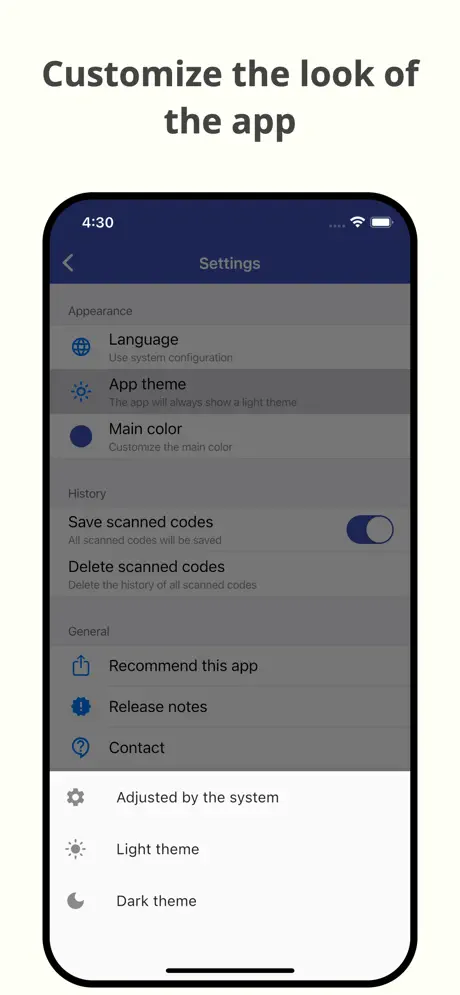
How much does WiFi QR Connect: Scan to Join cost?
Prices are current as of 30 Sept 2026.
2 subscriptions from $3.99
In the United States, WiFi QR Connect: Scan to Join has 2 subscriptions priced $3.99 – 24.99. Free trials run 7 days, 14 days or 1 month.
| Subscription | Period | Price |
|---|---|---|
| Premium | Monthly | $3.99 |
| Premium | AnnualTrial: 7 days, 14 days, 1 month | $4.49 – 24.99 |
1 one-time purchase from $12.99
In the United States, WiFi QR Connect: Scan to Join has 1 one-time purchase priced $12.99 – 24.99.
| Product | Price |
|---|---|
| Premium Lifetime | $12.99 – 24.99 |
See what WiFi QR Connect: Scan to Join costs in all 175 countries →
10+ alternatives to WiFi QR Connect: Scan to Join
| WiFi QR Connect: Scan to Join |   Wifi Password on Map Wifi View Wifi Password on Map Wifi View |   Wifi Share: internet & hotspot Wifi Share: internet & hotspot |   Wi-Fi Login Wi-Fi Login |   Router Password : WIFI Connect Router Password : WIFI Connect |   Wifi Password & Speed check Wifi Password & Speed check |   My Wi-Fi with QR Code My Wi-Fi with QR Code |   Wifi Share Manager - Wifi QR Wifi Share Manager - Wifi QR |   Router admin - Wifi Password Router admin - Wifi Password |   Wifi password connect Wifi password connect |   Wifi Code Wifi Code | |
|---|---|---|---|---|---|---|---|---|---|---|---|
| Rating / 5 | 4.6 | 4.4 | 4.2 | 4.3 | 4.5 | 2.3 | 4.1 | 4.5 | 2.4 | 2.5 | 2.9 |
| Reviews | 6.2K | 18K | 1.7K | 1.5K | 1.3K | 851 | 739 | 553 | 435 | 143 | 47 |
| Released | 2021 | 2024 | 2021 | 2018 | 2023 | 2019 | 2018 | 2023 | 2019 | 2023 | 2019 |
| One-time price | $12.99 | $19.99 | $0.99 | $3.99 | $1.99 | $3.99 | $4.99 | — | $2.99 | $3.99 | — |
The going rate for each plan in United States, in its own currency, shaded from the cheapest price on the row to the dearest. Plans fewer than four in ten of the priced apps sell are left out.
WiFi QR Connect: Scan to Join reviews
4.6 out of 5, based on 6,158 reviews.
Ótimo
Excelente trabalho
Mala app
Esa porqueria no sirve
Excelente
Excelente funciona muy bien..
Bad experience
Not working at all
Excelente app
Promete e cumpre !
Je t’aime le
Tousss niebe
WiFi QR Connect: Scan to Join price by country
An annual subscription costs $11.61 in Russia and $18.78 in Norway — 1.6× more for the same thing. Below is the going rate for each plan in every country that sells it — the middle price of what the app charges there, in the country's own currency with the dollar equivalent beneath it.
| Country | Monthly | Annual | One-time |
|---|---|---|---|
| Afghanistan | $3.99 | $12.99 | $17.99 |
| Albania | $4.99 | $14.99 | $19.99 |
| Algeria | $3.99 | $12.99 | $17.99 |
| Angola | $3.99 | $12.99 | $17.99 |
| Anguilla | $3.99 | $12.99 | $17.99 |
| Antigua And Barbuda | $3.99 | $12.99 | $17.99 |
| Argentina | $5.99 | $12.99 | $17.99 |
| Armenia | $4.99 | $14.99 | $19.99 |
| Australia | A$5.99$4.19 | A$19.99$13.98 | A$29.99$20.97 |
| Austria | €4.99$5.68 | €14.99$17.05 | €19.99$22.74 |
| Azerbaijan | $6.99 | $14.99 | $19.99 |
| Bahamas | $3.99 | $14.99 | $19.99 |
| Bahrain | $3.99 | $14.99 | $19.99 |
| Barbados | $4.99 | $14.99 | $19.99 |
| Belarus | $4.99 | $14.99 | $19.99 |
| Belgium | €6.49$7.38 | €14.99$17.05 | €19.99$22.74 |
| Belize | $3.99 | $12.99 | $17.99 |
| Benin | $6.99 | $14.99 | $19.99 |
| Bermuda | $3.99 | $12.99 | $17.99 |
| Bhutan | $3.99 | $12.99 | $17.99 |
| Bolivia | $3.99 | $12.99 | $17.99 |
| Bosnia & Herzegovina | €4.99$5.68 | €14.99$17.05 | €19.99$22.74 |
| Botswana | $3.99 | $12.99 | $17.99 |
| Brazil | — | R$79.90$15.34 | R$29.90$5.74 |
| British Virgin Islands | $3.99 | $12.99 | $17.99 |
| Brunei Darussalam | $3.99 | $12.99 | $17.99 |
| Bulgaria | €4.49$5.11 | €14.99$17.05 | €19.99$22.74 |
| Burkina Faso | $3.99 | $12.99 | $17.99 |
| Cambodia | $6.99 | $14.99 | $19.99 |
| Cameroon | $4.99 | $14.99 | $19.99 |
| Canada | — | CA$17.99$12.67 | CA$24.99$17.60 |
| Cape Verde | $3.99 | $12.99 | $17.99 |
| Cayman Islands | $3.99 | $12.99 | $17.99 |
| Chad | $3.99 | $12.99 | $17.99 |
| Chile | CLP 6,990$7.27 | CLP 14,990$15.59 | CLP 19,990$20.79 |
| China | CN¥28.00$4.17 | CN¥88.00$13.10 | CN¥128.00$19.05 |
| Colombia | COP 29,900$9.06 | COP 59,900$18.15 | COP 79,900$24.21 |
| Congo | $5.99 | $12.99 | $17.99 |
| Congo, Democratic Republic | $3.99 | $12.99 | $17.99 |
| Costa Rica | $3.99 | $12.99 | $17.99 |
| Cote Divoire | $4.99 | $14.99 | $19.99 |
| Croatia | €4.99$5.68 | €14.99$17.05 | €19.99$22.74 |
| Cyprus | €4.99$5.68 | €14.99$17.05 | €19.99$22.74 |
| Czech Republic | CZK 149.00$6.95 | CZK 349.00$16.27 | CZK 499.00$23.26 |
| Denmark | DKK 39.00$5.94 | DKK 99.00$15.07 | DKK 149.00$22.68 |
| Dominica | $3.99 | $12.99 | $17.99 |
| Dominican Republic | — | $12.99 | $17.99 |
| Ecuador | $5.99 | $12.99 | $17.99 |
| Egypt | EGP 299.99$5.76 | EGP 699.99$13.44 | EGP 999.99$19.20 |
| El Salvador | $3.99 | $12.99 | $17.99 |
| Estonia | €4.99$5.68 | €14.99$17.05 | €19.99$22.74 |
| Fiji | $3.99 | $12.99 | $17.99 |
| Finland | €4.99$5.68 | €14.99$17.05 | €19.99$22.74 |
| France | — | €14.99$17.05 | €19.99$22.74 |
| Gabon | $5.99 | $12.99 | $17.99 |
| Gambia | $3.99 | $12.99 | $17.99 |
| Georgia | $4.99 | $14.99 | $19.99 |
| Germany | €6.49$7.38 | €14.99$17.05 | €19.99$22.74 |
| Ghana | $6.99 | $14.99 | $19.99 |
| Greece | €6.49$7.38 | €14.99$17.05 | €19.99$22.74 |
| Grenada | $3.99 | $12.99 | $17.99 |
| Guatemala | $5.99 | $12.99 | $17.99 |
| Guinea-bissau | $3.99 | $12.99 | $17.99 |
| Guyana | $5.99 | $12.99 | $17.99 |
| Honduras | $3.99 | $12.99 | $17.99 |
| Hong Kong | HK$32.00$4.08 | HK$98.00$12.50 | HK$148.00$18.88 |
| Hungary | HUF 2,490$7.71 | HUF 5,990$18.56 | HUF 7,990$24.76 |
| Iceland | $4.99 | $14.99 | $19.99 |
| India | ₹599.00$6.24 | ₹1,299.00$13.52 | ₹1,999.00$20.81 |
| Indonesia | — | IDR 229,000$12.97 | IDR 299,000$16.94 |
| Iraq | $3.99 | $12.99 | $17.99 |
| Ireland | €4.99$5.68 | €14.99$17.05 | €19.99$22.74 |
| Israel | ₪14.90$4.85 | ₪49.90$16.25 | ₪49.90$16.25 |
| Italy | €6.49$7.38 | €14.99$17.05 | €19.99$22.74 |
| Jamaica | $5.99 | $12.99 | $17.99 |
| Japan | ¥600$3.81 | ¥2,000$12.71 | ¥3,000$19.07 |
| Jordan | $3.99 | $12.99 | $17.99 |
| Kazakhstan | KZT 3,490.00$7.92 | KZT 7,990.00$18.13 | KZT 9,990.00$22.67 |
| Kenya | $6.99 | $14.99 | $19.99 |
| Kosovo | €4.99$5.68 | €14.99$17.05 | €19.99$22.74 |
| Kuwait | $3.99 | $12.99 | $17.99 |
| Kyrgyzstan | $3.99 | $14.99 | $19.99 |
| Lao Peoples Democratic Republic | $3.99 | $14.99 | $19.99 |
| Latvia | €4.99$5.68 | €14.99$17.05 | €19.99$22.74 |
| Lebanon | $3.99 | $12.99 | $17.99 |
| Liberia | $3.99 | $12.99 | $17.99 |
| Libya | $3.99 | $12.99 | $17.99 |
| Lithuania | €4.99$5.68 | €14.99$17.05 | €19.99$22.74 |
| Luxembourg | €4.99$5.68 | €14.99$17.05 | €19.99$22.74 |
| Macao | $3.99 | $12.99 | $17.99 |
| Macedonia | $3.99 | $12.99 | $17.99 |
| Madagascar | $5.99 | $12.99 | $17.99 |
| Malawi | $3.99 | $12.99 | $17.99 |
| Malaysia | MYR 29.90$7.33 | MYR 59.90$14.68 | MYR 79.90$19.58 |
| Maldives | $3.99 | $12.99 | $17.99 |
| Mali | $3.99 | $12.99 | $17.99 |
| Malta | €4.99$5.68 | €14.99$17.05 | €19.99$22.74 |
| Mauritania | $3.99 | $12.99 | $17.99 |
| Mauritius | $3.99 | $14.99 | $19.99 |
| Mexico | — | MX$299.00$16.70 | MX$399.00$22.29 |
| Micronesia | $3.99 | $12.99 | $17.99 |
| Moldova | $4.99 | $14.99 | $19.99 |
| Mongolia | $3.99 | $12.99 | $17.99 |
| Montenegro | €3.99$4.54 | €11.99$13.64 | €17.99$20.47 |
| Montserrat | $3.99 | $12.99 | $17.99 |
| Morocco | $3.99 | $12.99 | $19.99 |
| Mozambique | $3.99 | $12.99 | $17.99 |
| Myanmar | $3.99 | $12.99 | $17.99 |
| Namibia | $3.99 | $12.99 | $17.99 |
| Nauru | $3.99 | $12.99 | $17.99 |
| Nepal | $4.99 | $14.99 | $19.99 |
| Netherlands | €4.99$5.68 | €14.99$17.05 | €19.99$22.74 |
| New Zealand | NZ$9.99$5.64 | NZ$22.99$12.99 | NZ$29.99$16.94 |
| Nicaragua | $3.99 | $12.99 | $17.99 |
| Niger | $3.99 | $12.99 | $17.99 |
| Nigeria | NGN 9,900.00$7.49 | NGN 19,900.00$15.05 | NGN 29,900.00$22.62 |
| Norway | NOK 49.00$5.14 | NOK 179.00$18.78 | NOK 229.00$24.03 |
| Oman | $5.99 | $12.99 | $17.99 |
| Pakistan | — | PKR 3,500$12.64 | PKR 4,900$17.69 |
| Palau | $3.99 | $12.99 | $17.99 |
| Panama | $3.99 | $12.99 | $17.99 |
| Papua New Guinea | $3.99 | $12.99 | $17.99 |
| Paraguay | $5.99 | $12.99 | $17.99 |
| Peru | PEN 24.90$7.28 | PEN 59.90$17.51 | PEN 79.90$23.36 |
| Philippines | — | ₱799.00$12.78 | ₱299.00$4.78 |
| Poland | PLN 19.99$5.21 | PLN 59.99$15.62 | PLN 79.99$20.83 |
| Portugal | €4.99$5.68 | €14.99$17.05 | €19.99$22.74 |
| Qatar | QAR 19.99$5.49 | QAR 49.99$13.73 | QAR 69.99$19.23 |
| Romania | RON 19.99$4.31 | RON 69.99$15.08 | RON 99.99$21.55 |
| Russia | RUB 499.00$5.80 | RUB 999.00$11.61 | RUB 1,490.00$17.31 |
| Rwanda | $3.99 | $12.99 | $17.99 |
| Sao Tome & Principe | $3.99 | $12.99 | $17.99 |
| Saudi Arabia | SAR 24.99$6.66 | SAR 59.99$16.00 | SAR 79.99$21.33 |
| Senegal | — | $14.99 | $19.99 |
| Serbia | €4.99$5.68 | €14.99$17.05 | €19.99$22.74 |
| Seychelles | $3.99 | $12.99 | $17.99 |
| Sierra Leone | $3.99 | $12.99 | $17.99 |
| Singapore | SGD 5.98$4.67 | SGD 19.98$15.61 | SGD 24.98$19.52 |
| Slovakia | €4.99$5.68 | €14.99$17.05 | €19.99$22.74 |
| Slovenia | €4.99$5.68 | €14.99$17.05 | €19.99$22.74 |
| Solomon Islands | $3.99 | $12.99 | $17.99 |
| South Africa | — | ZAR 249.99$15.23 | ZAR 399.99$24.37 |
| South Korea | ₩5,500$4.05 | ₩19,000$13.98 | ₩29,000$21.34 |
| Spain | €4.99$5.68 | €14.99$17.05 | €19.99$22.74 |
| Sri Lanka | $3.99 | $12.99 | $17.99 |
| St. Kitts and Nevis | $3.99 | $12.99 | $17.99 |
| St. Lucia | $3.99 | $12.99 | $17.99 |
| St. Vincent & The Grenadines | $3.99 | $12.99 | $17.99 |
| Suriname | $3.99 | $14.99 | $19.99 |
| Swaziland | $3.99 | $12.99 | $17.99 |
| Sweden | SEK 49.00$4.92 | SEK 179.00$17.97 | SEK 229.00$22.99 |
| Switzerland | CHF 5.00$6.01 | CHF 10.00$12.02 | CHF 15.00$18.03 |
| Taiwan | NT$120.00$3.77 | NT$390.00$12.26 | NT$590.00$18.55 |
| Tajikistan | $3.99 | $14.99 | $19.99 |
| Tanzania | TZS 17,900.00$6.76 | TZS 39,900.00$15.08 | TZS 49,900.00$18.85 |
| Thailand | THB 199.00$5.92 | THB 499.00$14.86 | THB 699.00$20.81 |
| Tonga | $3.99 | $12.99 | $17.99 |
| Trinidad and Tobago | $3.99 | $12.99 | $17.99 |
| Tunisia | $3.99 | $12.99 | $17.99 |
| Turkey | TRY 299.99$6.12 | TRY 699.99$14.29 | TRY 999.99$20.41 |
| Turkmenistan | $3.99 | $12.99 | $17.99 |
| Turks and Caicos | $3.99 | $12.99 | $17.99 |
| Uganda | $4.99 | $14.99 | $19.99 |
| Ukraine | $6.99 | $14.99 | $19.99 |
| United Arab Emirates | — | AED 49.99$13.62 | AED 69.99$19.07 |
| United Kingdom | £5.99$8.12 | £12.99$17.60 | £17.99$24.38 |
| United States | $3.99 | $12.99 | $12.99 |
| Uruguay | $3.99 | $12.99 | $17.99 |
| Uzbekistan | $6.99 | $14.99 | $19.99 |
| Vanuatu | $3.99 | $12.99 | $17.99 |
| Venezuela | $3.99 | $12.99 | $17.99 |
| Vietnam | — | ₫399,000$15.40 | ₫499,000$19.25 |
| Yemen | $3.99 | $12.99 | $17.99 |
| Zambia | $6.99 | $14.99 | $19.99 |
| Zimbabwe | $6.99 | $14.99 | $19.99 |
WiFi QR Connect: Scan to Join FAQ
- Is WiFi QR Connect: Scan to Join free?
- Yes. The app and its basic features are free, in all 175 countries it sells in. Premium features are paid: they start from $3.99 (US), across 2 subscriptions and 1 one-time purchase.
- How much does WiFi QR Connect: Scan to Join cost per month?
- Premium is $3.99 (US). The annual plan works out cheaper per month: $4.49 – 24.99 a year.
- Does WiFi QR Connect: Scan to Join have a free trial?
- Yes — free trials of 7 days, 14 days or 1 month (US), depending on the plan.
- Where is WiFi QR Connect: Scan to Join cheapest?
- An annual subscription costs RUB 999.00 (≈$11.61) in Russia and NOK 179.00 (≈$18.78) in Norway, its cheapest and dearest countries.
- What are the best alternatives to WiFi QR Connect: Scan to Join?
- Wifi Password on Map Wifi View (4.4 from 18,001 reviews, premium from $6.99), Wifi Share: internet & hotspot (4.2 from 1,681 reviews, premium from $0.99) and Wi-Fi Login (4.3 from 1,544 reviews, premium from $3.99).
WiFi QR Connect: Scan to Join download
Last updated 1 month ago.
WiFi QR Connect: Scan to Join sells in 175 countries. It was released 5 years and 2 months ago, on 23 Jul 2021. It holds a 4.6 rating from 6,158 reviews.
Supports 18 languages: English, Catalan, Dutch, French, German, Hindi, Indonesian, Italian, Japanese, Korean, Polish, Portuguese, Russian, Chinese, Spanish, Thai, Turkish, Vietnamese.
How much does WiFi QR Connect: Scan to Join make?
Third-party estimates for the last 30 days, worldwide — not the store's own figures, which Apple publishes for nobody.
Revenue by plan
- Annual 91%
- One-time 7%
- Monthly 2%
Revenue by country
- United Arab Emirates 17%
- United States 13%
- Qatar 9%
- Saudi Arabia 8%