iOS Subscription Groups: Rules, Setup, and Level Strategy

An iOS subscription group is a mutually exclusive set of auto-renewable products. A subscriber can hold only one active subscription per group at a time, and the level you assign each product inside that group controls whether a plan change counts as an upgrade, a downgrade, or a crossgrade. Apple recommends putting all versions of one service into a single group rather than scattering them across several, because that’s what lets the App Store handle proration and switching automatically instead of you writing custom logic for it.
Most apps only need one group. If you sell a single core product (say, an ad-free tier and a premium tier of the same app), those belong together, ranked by value. Separate groups only make sense when you’re selling genuinely distinct services that a user could reasonably want at the same time, like a fitness app that also sells a nutrition-coaching add-on.
Before you touch App Store Connect, get three things straight:
- Rank your highest-value plan as Level 1. Everything else in the group sits below it in descending order of value.
- Decide upfront which durations get an intro offer or free trial, since each subscriber gets only one per group, ever.
- Log every subscription change (upgrade, downgrade, cancellation) from day one. You’ll need that data to debug billing disputes and to see how pricing changes affect retention.
Pro Tip: Sketch your entire subscription hierarchy on paper before opening App Store Connect. Reorganizing levels after launch is far messier than getting the order right the first time.
Key Takeaways
Subscription group structure and level ranking determine billing behavior automatically, so getting the hierarchy right before launch matters more than any code you write afterward.
| Point | Details |
|---|---|
| One group per service | Keep mutually exclusive offerings in a single group; only split into multiple groups for genuinely distinct services. |
| Level order drives billing | Level 1 is your highest tier, and level ranking determines whether a switch is an upgrade, downgrade, or crossgrade. |
| Intro offers are one-time per group | Each subscriber gets one introductory offer or free trial per group, which limits how you can test pricing later. |
| Grouping decisions are permanent | You cannot move a subscription between groups after submission, so plan the full hierarchy before creating anything. |
| Validate pricing with market data | Use a tool like Apppricer to check level spreads and durations against comparable apps before restructuring a group. |
Table of Contents
- What Are iOS Subscription Groups and How Do the Rules Work?
- How Do Upgrades, Downgrades, and Crossgrades Actually Work?
- Setting Up Subscription Groups in App Store Connect
- How Do Intro Offers and Free Trials Interact With Groups?
- Building the StoreKit Integration Around Subscription Groups
- What Mistakes Should You Avoid With Subscription Groups?
- What Does Pricing Data Reveal About Level Strategy?
- Why Most Subscription-Group Advice Misses the Point
- Get Pricing Data Before You Lock In Your Subscription Structure
- Sources
What Are iOS Subscription Groups and How Do the Rules Work?
A subscription group bundles related auto-renewable products so the App Store treats them as one service rather than as unrelated purchases. Inside a group, users can hold exactly one active subscription at a time, which is the mechanism that makes clean upgrade and downgrade paths possible. Try to sell two subscriptions from the same group simultaneously and the system won’t let you. That’s by design.
Three structural facts define what you can build:
- Levels determine hierarchy. You assign each subscription a level, with Level 1 reserved for your highest-value offering. Levels aren’t just labels. They tell the App Store which direction a plan change is moving, which then determines the proration math.
- Durations are fixed choices. Each subscription in a group picks a duration from 1 week, 1 month, 2 months, 3 months, 6 months, or 1 year, and you can’t change that duration after submission. Get it wrong and you’re creating a new product, not editing the old one.
- Capacity is generous but not infinite. A single group can hold up to 100 subscriptions, which covers even apps running dozens of regional or legacy price points.
App Store Connect also separates the reference name (internal, never shown to users) from the display name (what subscribers actually see on their purchase and management screens). Localize the display name for every market you sell in. A reference name that only your team sees can stay in English; a display name that says “Premium Tier A” to a French subscriber looks like a bug, not a product.
The decision that matters most here is whether you need one group or several. Default to one group per mutually exclusive service. Reach for multiple groups only when you’re selling products a user might genuinely want to stack, like a core app subscription plus a separate add on pack that doesn’t compete with it for the same use case.
Pro Tip: If you’re debating whether two offerings belong in one group, ask whether a subscriber would ever want both active simultaneously. If yes, they need separate groups. If no, one group with proper levels handles it.
How Do Upgrades, Downgrades, and Crossgrades Actually Work?
The level number you assign to each product is what tells the App Store how to handle a subscriber’s switch, and that ranking directly controls proration and effective dates. Get the levels wrong and you get billing behavior you never intended, sometimes without noticing until support tickets pile up.
Here’s how the three types of change actually resolve:
- Upgrade (moving to a higher level): takes effect immediately. The subscriber gets instant access to the new tier, and Apple issues a prorated refund for the unused portion of the old subscription.
- Downgrade (moving to a lower level): takes effect at the next renewal date. The subscriber keeps their current tier’s access until the existing billing period ends, then rolls into the cheaper plan.
- Crossgrade (switching between subscriptions at the same level): timing depends on duration. Equal durations at the same level behave like a downgrade, taking effect at renewal. Different durations at the same level can trigger different timing depending on which direction the price moves.
Three examples make this concrete. A subscriber on a $9.99 monthly plan switches to a $79.99 annual plan at the same level: that’s an upgrade in value, so it applies immediately with a prorated refund on the unused month. Reverse that, and someone on the annual plan drops to monthly: that’s a downgrade, so they keep annual access until the current year ends, then the monthly plan takes over. Now imagine two plans at the identical level, one billed monthly and one billed annually at an equivalent effective rate: that’s a crossgrade, and because the durations differ, the exact effective timing depends on how the two prices compare rather than following a single fixed rule.
There’s a timing wrinkle worth knowing before it surprises you: renewal dates on shorter durations can shift when a month has fewer days than the billing cycle expects, rolling to the last day of the following month and then correcting itself once the original date becomes available again. If your app displays “next billing date” anywhere in the UI, account for that drift or you’ll field confused support messages every time it happens.
Setting Up Subscription Groups in App Store Connect
Configuring a group correctly the first time saves you from submission delays and, worse, from having to explain to users why a “new” subscription just canceled their old one. App Store Connect is where all of this configuration lives, and the workflow follows a fixed sequence.
- Go to Monetization in App Store Connect and create a new subscription group.
- Set the reference name (internal only, for your team’s records) and the display name (what subscribers see, localized per market).
- Add your subscription products to the group, one per price point or duration you’re offering.
- Assign each product a duration from the six supported options and a level, with Level 1 as your top tier.
- Submit the group with your app binary. The first auto-renewable subscription in a group must go through App Review alongside a new app version, not as a standalone metadata change.
A few rules trip up teams that haven’t done this before:
- Groups can only be deleted when empty. If you need to retire a group, remove every subscription from it first.
- You cannot move an existing subscription into a different group later. That decision is permanent once the product ships.
- Display names have character limits and show up in App Store receipts, subscription management screens, and renewal notifications, so keep them short and unambiguous across every localized version.
If you’re managing dozens of products across many countries, doing this by hand in the App Store Connect interface gets error-prone fast. Apple’s App Store Connect API exposes endpoints for creating and modifying subscription groups, listing localizations, and managing group membership programmatically, which is worth building into your release pipeline once you’re past a handful of SKUs.
How Do Intro Offers and Free Trials Interact With Groups?
Every subscriber gets exactly one introductory price or free trial per subscription group, for the lifetime of their Apple ID in that group, not per subscription. That single rule shapes almost every pricing experiment you’ll want to run.

The practical implication: if you launch a free trial on your monthly plan, then later want to test a different trial length or discount on your annual plan in the same group, subscribers who already used the monthly trial are locked out of getting another one. Testing separate introductory offers usually means isolating those offers into a different subscription or a different group entirely, which is a bigger structural decision than it sounds.
Win-back and promotional offers behave a little differently since they can target lapsed or existing subscribers within the same group without consuming a user’s one-time intro offer eligibility, which makes them the safer lever for re-engagement campaigns.
A few patterns keep offer testing from backfiring:
- Never run two live intro-offer experiments on products in the same group at the same time. You’ll contaminate your data with users who were simply ineligible for one variant.
- If a pricing test requires exposing different user segments to different trial lengths, build that into separate groups rather than trying to manage eligibility manually.
- Watch for the scenario where a subscriber cancels during a trial, then later tries to resubscribe in the same group expecting another trial. They won’t get one, and your onboarding copy should never imply otherwise.
Pro Tip: Before launching any offer test, map out exactly which subscribers are still eligible for an intro offer in that group. Running a test against an already-exhausted pool of trial eligibility produces numbers that look bad for reasons that have nothing to do with your pricing.
Building the StoreKit Integration Around Subscription Groups
Your code needs to reflect the same group logic Apple enforces on its end, or your UI will promise things the App Store won’t deliver. Start with subscription status. StoreKit 2 lets you fetch a user’s current entitlements and check which product, level, and group they’re active in, which is the foundation for every subscription-aware screen in your app.
For letting users manage their own subscriptions, Apple’s guidance points directly to the showManageSubscriptions(in:) API, which opens the native App Store management sheet instead of forcing you to build your own cancellation and plan-change flows. Building a custom subscription management screen when this API exists is wasted engineering time; use the system sheet and focus your effort elsewhere.
On the backend, validate receipts server-side rather than trusting client-reported entitlement state, especially across multiple groups where a user might hold active subscriptions in more than one group simultaneously. StoreKit 2’s transaction updates stream gives you a way to react to renewals, cancellations, and refunds in near real time, but that stream should feed a server-side source of truth, not stand alone as your only validation layer.
A few UX rules worth building into every subscription screen:
- Show the subscriber’s current plan name using the same display name Apple shows them, not an internal shorthand that won’t match their receipt.
- Surface the effective date of any change clearly. If a downgrade won’t take effect until next month, say so in the confirmation screen, not just in a support article.
- Never offer a purchase button for a product in the same group the user already holds. StoreKit will reject it, but your UI should prevent the tap before it gets there.
| StoreKit task | Recommended approach |
|---|---|
| Check current entitlements | Query StoreKit 2’s transaction and subscription status APIs on app launch |
| Let users manage or cancel | Call showManageSubscriptions(in:) instead of building custom flows |
| Confirm entitlement validity | Validate receipts server-side, especially across multiple active groups |
| React to renewals and refunds | Listen to StoreKit 2 transaction updates and sync to your backend |
What Mistakes Should You Avoid With Subscription Groups?
The single most consequential fact about subscription groups is that you cannot move a subscription from one group to another after it ships. Get your grouping wrong at launch and your only fix is creating new products and migrating users manually, which usually means losing some of them along the way. Treat this as an architectural decision made once, not a setting you’ll revisit next quarter.
The most common mistakes we see fall into three buckets:
- Mis-grouping distinct services. Bundling a core subscription and an unrelated add-on into one group forces users to cancel one to buy the other, which kills a purchase path that should have been additive revenue.
- Testing multiple price points inside one group. This burns through each user’s one-time intro offer eligibility and muddies your upgrade/downgrade data, since price changes inside a group get read as level changes.
- Vague or untranslated display names. A display name that only makes sense to your internal team confuses subscribers on their renewal receipt and drives avoidable cancellations.
The best-practice checklist is short but worth keeping visible during planning: map your full product hierarchy before creating anything in App Store Connect, localize every display name for every market you sell in, instrument telemetry that tracks every upgrade and downgrade event, and default to one group unless you have a specific reason for more.
Pro Tip: When in doubt between one group and two, choose one. It’s far easier to add a second group later for a genuinely new service than to unwind a mis-grouped product that’s already accumulated paying subscribers.
What Does Pricing Data Reveal About Level Strategy?
Apple’s rules tell you how levels behave. They don’t tell you what to charge at each level or which durations actually convert in a given market. That’s where aggregated pricing data earns its keep, since duration preferences and price sensitivity shift substantially by country, meaning a spread that performs well in the United States can flop in Southeast Asia if you copy it without adjustment.
A few patterns worth checking before you lock in level pricing:
- Look at how competing apps in your category cluster their durations by region. Monthly-only pricing dominates in some markets while annual plans carry a bigger share of revenue in others.
- Keep enough distance between your entry-level and premium tiers that upgrading feels like a real value jump, but not so much that the entry tier looks like a decoy.
- Before restructuring an existing group, pull comparable app pricing and subscription data to model how a level change might shift revenue rather than shipping a guess and watching churn numbers for a month to find out.
Running that comparison against live market data before touching App Store Connect turns a structural change from a bet into an informed decision.
Why Most Subscription-Group Advice Misses the Point
Most guides on this topic stop at Apple’s documentation: here’s what a group is, here’s what a level does, good luck. That’s necessary but incomplete. The real failure point isn’t misunderstanding proration logic. It’s picking level rankings and price spreads with no reference to what actually converts in a given market, then treating a bad quarter as a UX problem instead of a pricing problem.
The conventional advice to “start with one group and one price point” is fine for a first release, but it stops being useful the moment you have real subscriber data and want to add a second tier. At that point, the question isn’t structural, it’s economic: what spread between Level 1 and Level 2 keeps people from churning to the cheaper option while still lifting your average revenue per user? Apple’s documentation can’t answer that. Market pricing data can, at least directionally.
If there’s one thing to prioritize first, it’s this: don’t finalize your level pricing until you’ve checked it against what comparable apps in your category are charging across the markets you actually sell in. Structure follows Apple’s rules. Pricing should follow the market.
— Sergey
Get Pricing Data Before You Lock In Your Subscription Structure
Apppricer gives you aggregated app pricing and subscription-model data across 175 countries, built specifically for developers deciding what to charge at each level of a subscription group.
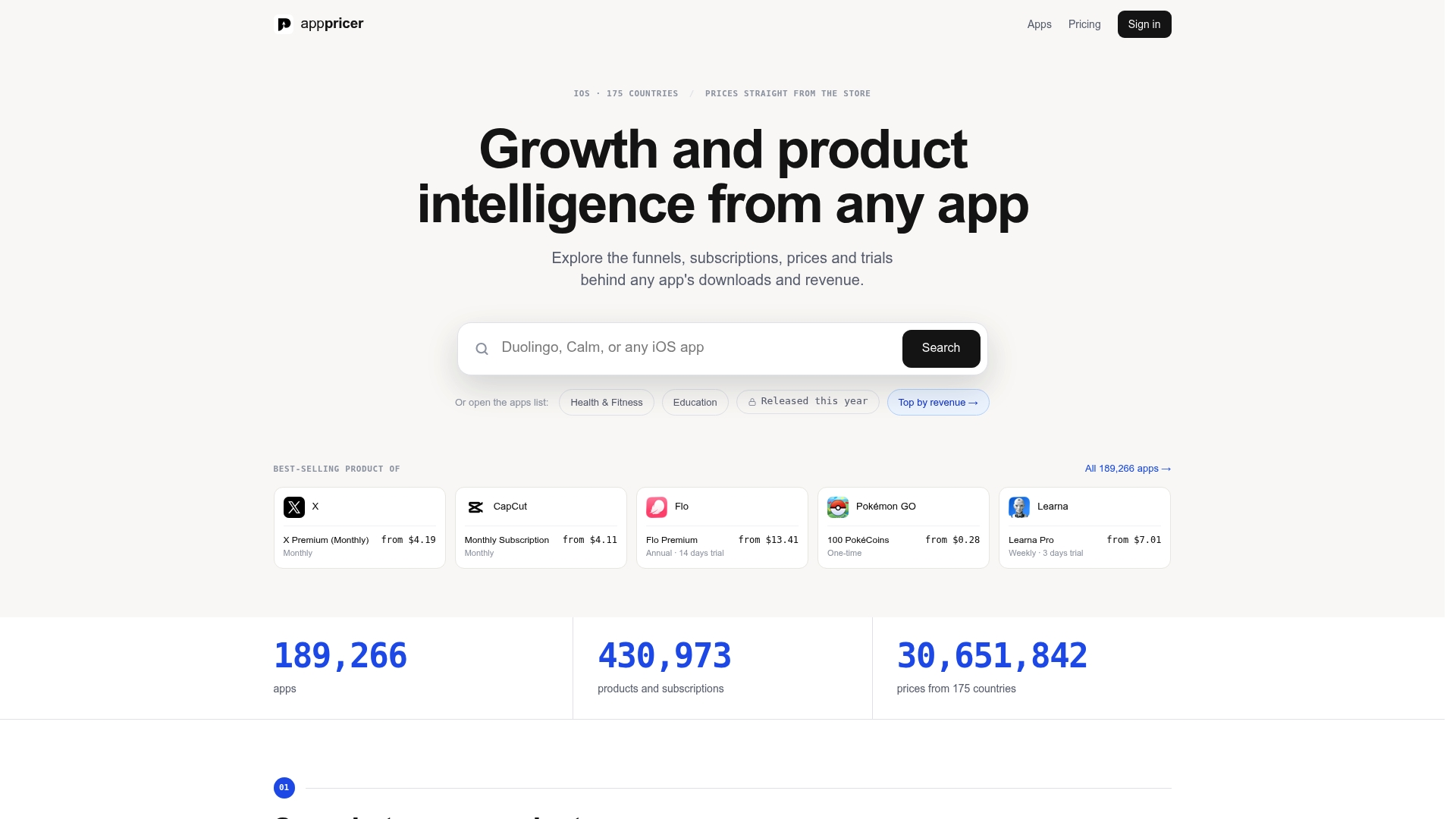
Instead of guessing at a Level 1 to Level 2 price spread or copying whatever a competitor charges in one market and assuming it holds everywhere, you can pull actual pricing and subscription structures from comparable apps and see how durations and price points vary by country before you touch App Store Connect. That matters most right before a group restructure, since the decisions you make there are permanent once submitted. Growth managers use the same data to spot which regions support higher annual pricing and which ones convert better on shorter durations, turning what used to be a launch-and-hope pricing decision into one backed by real market numbers. Start by browsing Apppricer’s pricing database for apps in your category and compare their tier spreads against what you’re planning before you finalize a single level.