900 Price Points: App Store Price Tiers Developers Must Manage

Apple sells apps and in-app purchases through a fixed ladder of approximately 900 price points, including default tiers and additional high tiers available on request. You choose one base country, and Apple auto-generates prices for the other storefronts using exchange rates and local tax rules. The one exception that trips up almost everyone: auto-renewable subscriptions don’t get those automatic updates once set.
TL;DR:
- Auto-conversion prices are recalculated regularly based on current exchange rates and tax rules, but manual overrides require ongoing management.
- Subscription prices set in storefronts are treated as manual, fixed prices that need regular review for currency drift and inflation, unlike one-time app prices.
- Apple’s tier system offers roughly 900 fixed price points, with increments that vary by price range and local conventions, making precise adjustments necessary for higher tiers.
- Prioritize manual pricing adjustments in your top revenue markets and rely on auto-conversion for the rest, conducting quarterly or monthly reviews as needed.
- Using tools like apppricer simplifies cross-border pricing, enabling comparison of market rates, tracking of trends, and better decisions for pricing strategies.
Table of Contents
- What Are App Store Price Tiers, Exactly?
- How Does Base-Country Pricing Work in App Store Connect?
- Why Do Subscription Prices Behave Differently?
- Price-Step Rules and Local Conventions Worth Memorizing
- When to Trust Auto-Conversion vs. When to Localize
- Your App Store Connect Pricing Checklist
- Monitoring, Automation, and the Tools That Cut the Busywork
- How Do Taxes and VAT Change What Customers Actually Pay?
- App Store vs. Google Play: How Do Price Tiers Compare?
- What Most Teams Get Wrong About Pricing Tiers
- Let Apppricer Handle the Cross-Border Pricing Math
- Where These Numbers and Rules Come From
- Sources
What Are App Store Price Tiers, Exactly?
App Store price tiers are the preset price points Apple lets you assign to a paid app or in-app purchase instead of typing in any arbitrary number. You pick a tier, and Apple maps it to a local price in every storefront where the app is sold.
The system is bigger than most developers assume. Apple’s In-App Purchase documentation lays out roughly 800 default tiers, and Apple will unlock around 100 extra high tiers if you request them, pushing the practical ceiling closer to 900 distinct price points. That range covers everything from a $0.99 utility app to four-figure enterprise software.
The increments aren’t uniform across the whole range:
- Below $10, tiers typically move in $0.10 steps ($0.99, $1.09, $1.19, and so on).
- Between $10 and $50, the steps widen to $0.50 increments.
- Above $50, the gaps grow larger still, and Apple applies different rounding conventions depending on the currency.
Apple maintains this ladder across multiple storefronts and many currencies, and it periodically revises the table to reflect currency and tax shifts. That periodic revision is exactly why a price you set once doesn’t stay accurate forever.
How Does Base-Country Pricing Work in App Store Connect?
Every app or IAP needs a base country, and that single choice does more work than most developers realize. Apple treats your base country’s price as the anchor, then calculates comparable prices for other storefronts using current exchange rate data and each region’s tax treatment.
The mechanics inside App Store Connect are straightforward once you’ve done it:
- Set your base country under app pricing, then pick a tier. Apple immediately shows you the comparable price it will apply everywhere else.
- Apple recalculates those comparable prices on a rolling basis to track FX movement and tax changes, so a storefront price you never touch can still shift over time.
- The moment you manually override a specific storefront’s price, that storefront drops out of Apple’s automatic recalculation. It stays frozen at whatever number you entered until you change it again.
That last point matters more than it looks. A manual override solves a short-term pricing problem but creates a long-term maintenance obligation, since nothing is watching that price for you anymore. Teams managing dozens of manual overrides across storefronts often find they’ve quietly built themselves a spreadsheet job.
Why Do Subscription Prices Behave Differently?
This is the part of app subscription pricing that catches developers off guard. Apple’s pricing and availability documentation for in-app purchases and subscriptions confirms you can set subscription prices per country or region and schedule offers, but auto-renewable subscriptions don’t ride along with Apple’s ongoing storefront recalculations the way one-time app prices do.
Once you set a subscription price in a given storefront, it behaves like a manual override from day one, whether you meant it to or not. Practically, that leaves you with a few things to manage on your own:
- Decide whether to preserve current pricing for existing subscribers or apply a new price only to new and recent buyers. Apple supports both paths, but the choice is yours to make explicitly.
- Track currency drift and local inflation yourself, since Apple won’t flag it or adjust for it automatically.
- Set a review cadence. Quarterly checks are a reasonable baseline; monthly makes sense in storefronts with volatile currencies or high inflation.
Skip that review process for a year or two and your subscription price in, say, Turkey or Argentina can end up wildly out of step with what Apple would generate today. Nobody at Apple is going to tell you that happened.
Price-Step Rules and Local Conventions Worth Memorizing
The step rules are simple to state and easy to forget under deadline pressure. Under $10, tiers move in $0.10 increments. From $10 to $50, they jump in $0.50 steps. Above $50, the increments widen further and vary by currency, which is why a $99.99 tier in USD doesn’t always land on a clean equivalent everywhere else.
Pro Tip: Pull the current tier table before you price anything above $20. Apple’s higher tiers skip unevenly in some currencies, and guessing at a comparable price instead of checking it is how you end up $3 off from where you meant to land.
Local pricing conventions add another layer. US and European storefronts lean on .99 endings; some markets favor .90; Japan and a few other storefronts round to whole numbers or clean multiples of ten. China has historically favored prices ending in 8, tied to cultural associations with the number. Mirava’s Apple price tier cheat sheet documents cases where a straight auto-converted price technically matches the exchange rate but lands well above what buyers in that market are used to paying, effectively pricing the app out of reach without anyone intending it.
When to Trust Auto-Conversion vs. When to Localize
Auto-conversion is a compliance and currency-management feature, not a growth strategy. It keeps your prices roughly aligned across 175 storefronts without manual work, but “roughly aligned” and “optimized for each market” are different goals. Here’s a workable decision framework:
- Rank your storefronts by revenue or download volume. Your top 10 to 15 markets deserve manual attention. Everywhere else, auto-conversion is a reasonable default.
- For high-priority markets, calculate a purchasing-power-parity baseline. Take your base price, adjust it by the target country’s PPP ratio relative to your base country, then round to the nearest available Apple tier rather than an arbitrary number.
- Compare the PPP-adjusted price against Apple’s auto-converted price. A gap of more than 15 to 20 percent is usually worth acting on, especially in emerging markets where affordability drives conversion more than brand perception does.
- Set your review cadence upfront. Quarterly reviews work for stable currencies; move to monthly in markets with high inflation or frequent currency controls.
- Test before rolling out broadly. Where your traffic supports it, A/B test a localized price against the auto-converted default in two or three comparable markets before applying the change everywhere.
Practitioner experience across pricing teams generally lands on the same conclusion: auto-conversion works fine as a floor, but the markets driving real revenue deserve a deliberate price, not whatever Apple’s algorithm happened to generate that quarter.
Your App Store Connect Pricing Checklist
Before you touch a single price, confirm the administrative basics are in order, because a lapsed agreement or missing tax form will block changes at the worst possible moment.
- Confirm your Paid Apps Agreement, tax forms, and banking details are current in App Store Connect. Apple won’t let you set or change paid pricing without this.
- Choose your base country and select a tier. Click through to Comparable Prices to preview exactly what Apple will generate for every other storefront before you confirm anything.
- Review the generated matrix line by line for your priority markets, and manually override any storefront where the auto-converted number misses your target.
- Schedule the change with a specific start date if you want time to prepare release notes, support responses, or marketing around it, rather than pushing it live immediately.
- Configure introductory or promotional offers for subscriptions if you’re launching a new tier, and explicitly choose whether existing subscribers keep their current price or move to the new one.
- Save your final comparable-price export as a reference point, so your next review has a clean baseline to compare against instead of guessing what changed.
Monitoring, Automation, and the Tools That Cut the Busywork
Four numbers tell you almost everything about whether a price change worked: conversion rate by storefront, download volume, average revenue per user, and churn in the weeks after the change. A conversion-rate drop of more than a few points in a single storefront right after a price bump is usually your clearest signal that you’ve pushed past what that market will bear. The fundamentals of conversion-rate optimization apply just as directly to pricing decisions as they do to landing pages.
Manual monitoring across dozens of storefronts doesn’t scale well. A common pattern: export Apple’s current tier matrix, run it through a PPP and rounding script, preview the resulting changes, then push updates through App Store Connect or a pricing API.
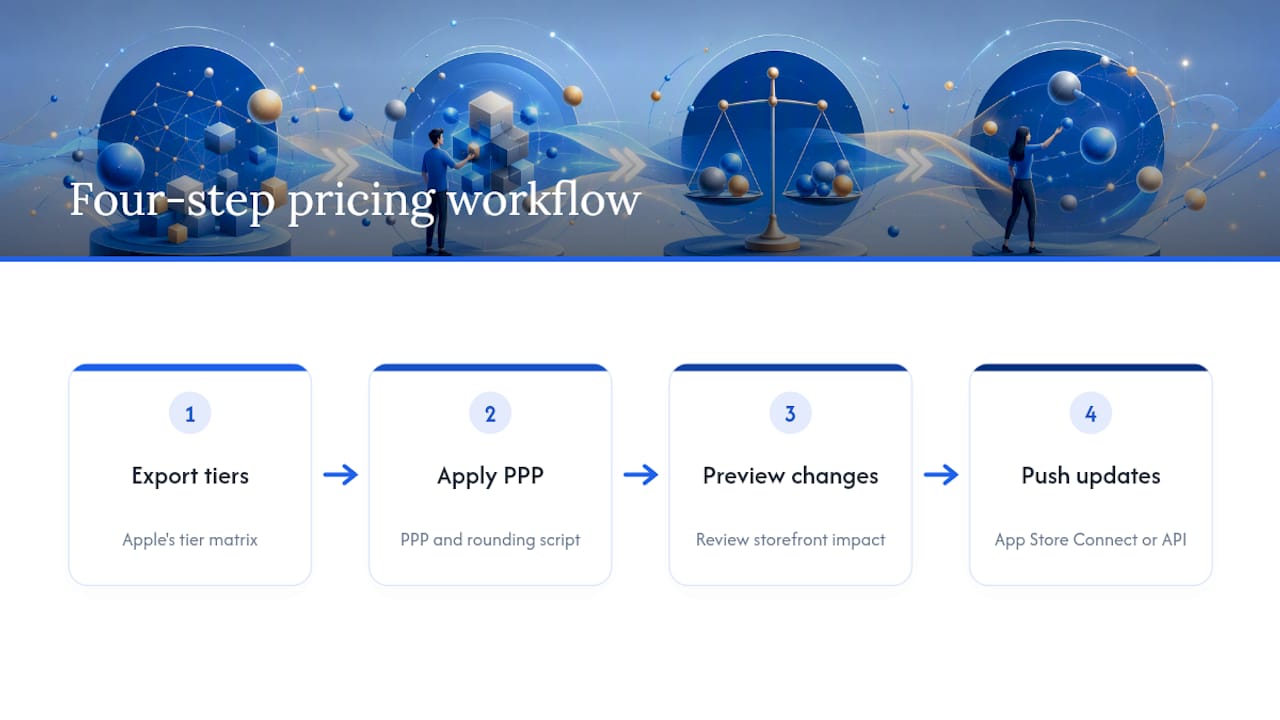
This is where a platform like apppricer earns its place in the workflow. It consolidates per-country prices across 175 countries, visualizes where a small tier change jumps disproportionately in a specific storefront, and shortens a process that otherwise eats a full afternoon of spreadsheet work every quarter.
How Do Taxes and VAT Change What Customers Actually Pay?
The tier price you set is rarely the final number a customer sees. Apple’s comparable-price calculations already factor in each region’s tax treatment, but the underlying rates vary enormously and shift more often than most developers track.
In the United States, there’s no VAT, but certain states apply sales tax to digital goods, which Apple also factors into the storefront price rather than adding at checkout. Countries like Japan, Canada, and Australia layer on their own consumption tax or GST rules, each with different thresholds for what counts as a taxable digital service.
The practical consequence is that your $9.99 base tier doesn’t produce a uniform $9.99-equivalent everywhere. That’s Apple’s system working correctly, not a glitch.
Tax rules also change. A country revising its VAT rate or adding a digital services tax will show up in Apple’s next round of comparable-price recalculations for auto-converted storefronts, but manually overridden prices won’t move until you update them. That’s another reason a storefront you “set and forgot” two years ago can end up carrying a tax assumption that’s simply out of date, quietly compressing your margin in that market without any alert telling you it happened.
App Store vs. Google Play: How Do Price Tiers Compare?
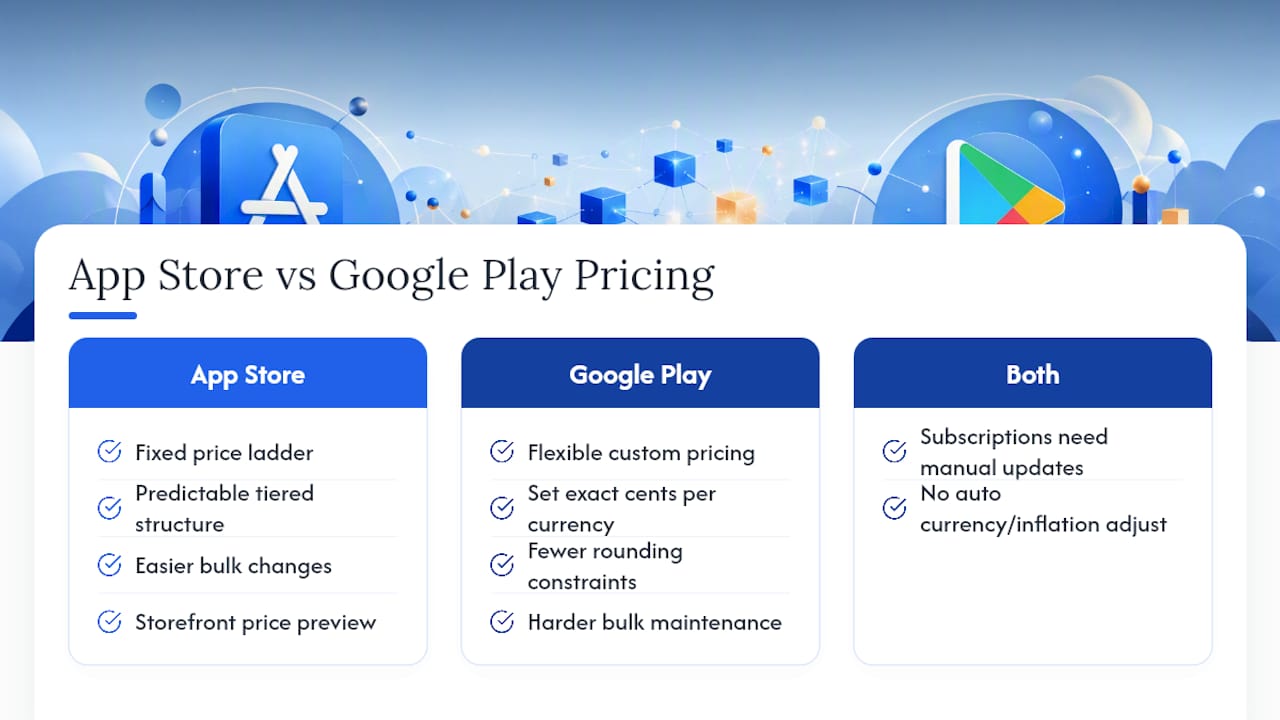
Google Play Store pricing works on a fundamentally looser model than Apple’s. Where Apple requires every price to land on a point from its fixed ladder, Google Play lets developers set nearly any price point directly in the currency and amount they choose, with far fewer rounding constraints.
That flexibility cuts both ways. Google Play developers can fine-tune a price to the cent in any supported currency without hunting for the nearest available tier, which sounds like an advantage until you’re managing pricing across 30 or 40 countries by hand with no ladder to lean on. Apple’s tier system, restrictive as it feels at first, gives every price a predictable structure and makes bulk changes more mechanical. Comparable-price previews in App Store Connect also give you a single view of how a change ripples across every storefront at once, something Google Play’s more open pricing model doesn’t replicate in the same way.
For subscriptions specifically, both platforms share the same core weakness: neither auto-adjusts a live subscription price to track currency or inflation drift once it’s set. Whichever platform you’re on, subscription pricing is a manual maintenance job, not a background process Apple or Google is handling for you.
What Most Teams Get Wrong About Pricing Tiers
The most expensive mistake isn’t picking the wrong tier. It’s never revisiting the tiers you already picked. Subscription prices set two or three years ago routinely sit far from where PPP-adjusted local pricing would put them today, and almost nobody catches it until a churn spike forces a review.
The second mistake is treating Apple’s auto-conversion as a pricing strategy instead of what it actually is: a currency and tax compliance mechanism. It keeps you legal and roughly reasonable. It does not optimize for what a buyer in Manila or Warsaw is actually willing to pay.
If you’re prioritizing where to spend manual effort, start with your top revenue markets and any storefront with high inflation or currency volatility. Everywhere else, let auto-conversion do its job and check back quarterly.
— Sergey
Let Apppricer Handle the Cross-Border Pricing Math
Running the PPP calculations, tier lookups, and comparable-price checks across dozens of storefronts by hand is exactly the kind of work that eats a growth manager’s week for no strategic payoff. This tool provides access to aggregated pricing and subscription data across many countries so you can see what similar apps charge in each market before setting a tier.
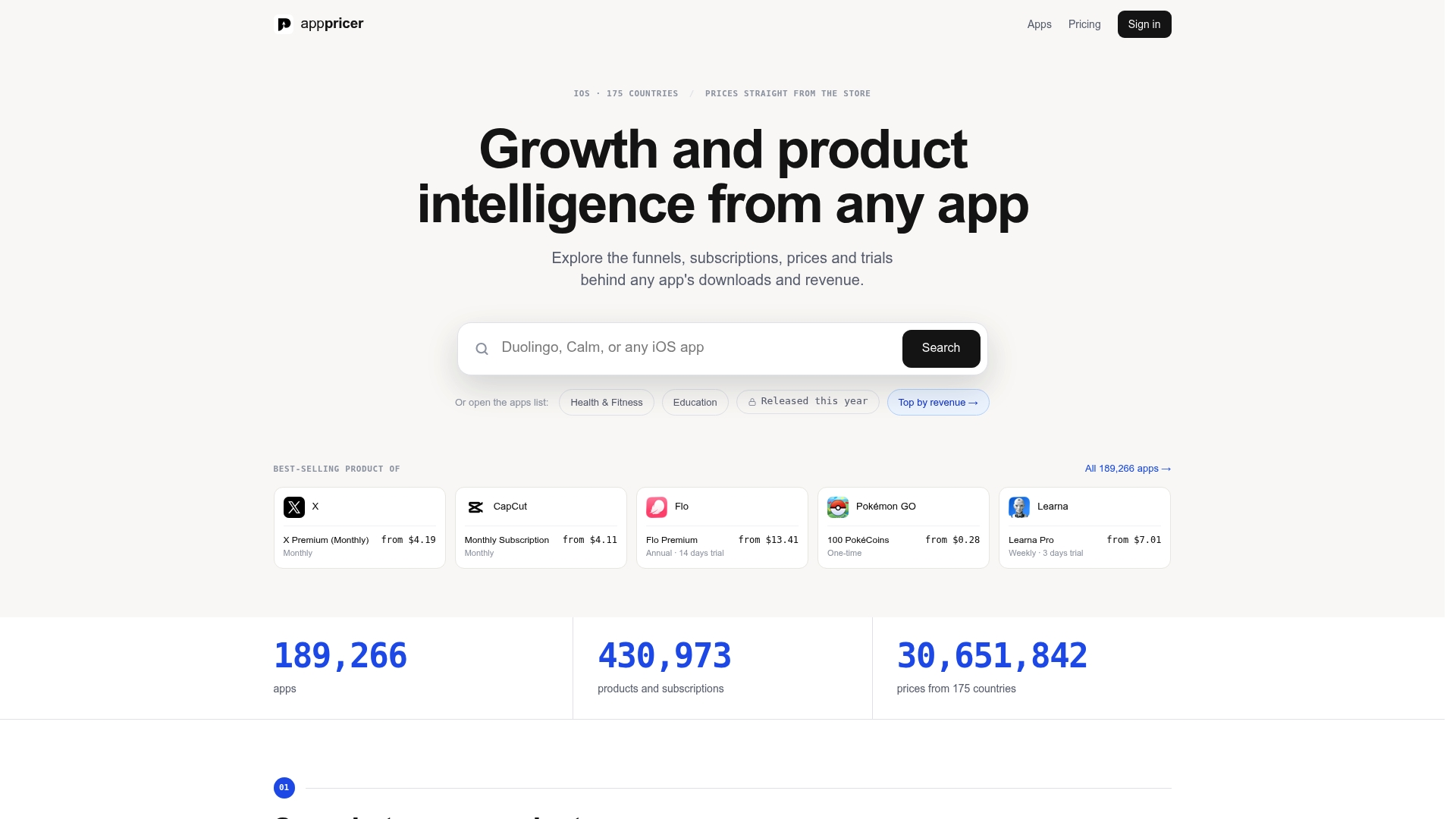
Specifically, it helps you:
- Compare your current tier against competitor prices by country, instead of relying solely on default conversions.
- Spot revenue and download trends tied to specific price points for data-backed decisions.
- Track subscription models across storefronts to catch pricing drift before it impacts conversion or margin.
If you’re managing pricing across more than a handful of storefronts, or you’re tired of rebuilding the same PPP spreadsheet every quarter, browse real iOS app prices and subscription tiers to see how your current pricing stacks up against the market before you set your next tier.
Where These Numbers and Rules Come From
The tier counts, increment rules, and subscription mechanics referenced here come directly from Apple’s own documentation: Set a price, the In-App Purchase reference, and the subscriptions pricing guide. Mirava’s price tier cheat sheet and PricePush’s country pricing reference are useful supplements for spot-checking specific tier values without digging through Apple’s full matrix.