Remove Unwanted Object
Photo & VideoUtilities

Remove Unwanted Object

Zain Ali · released 17 Jan 2020 · Open in App Store ↗

Revenue 30d not estimated
Downloads 30d not estimated
Rating 4.36 650 reviews

No in-app products collected for this app.

Rating
Vietnam33%2144.66
Saudi Arabia17%1084.53
United States13%834.57
Nigeria3%214.48
United Arab Emirates2%164.81
Egypt2%163.94
Mexico2%133.62
Japan2%104.10
India1%94.56
Italy1%92.33
Russia1%93.44
Pakistan1%74.14

The store shows a different set in every country

Description

With this AI-powered app you can remove unwanted object of photo & video, you can eraser person, eraser object, eraser sticker or text on your photo & video. It's all free!

Compared to traditional tools, This app recreates realistic backgrounds without the need for selecting a background reference like the clone stamp tool.

Key features:

Delete telephone wires and posts, power lines

Remove surface breaks and scratches

Remove unwanted person

Erase pimples and skin blemishes

Delete human-made objects like stop lights, street signs, trash cans

Remove unwanted sticker or text

Remove whatever you feel is spoiling your photos or videos

HOW TO USE?

As soon as you start the app it show you option to select image or video

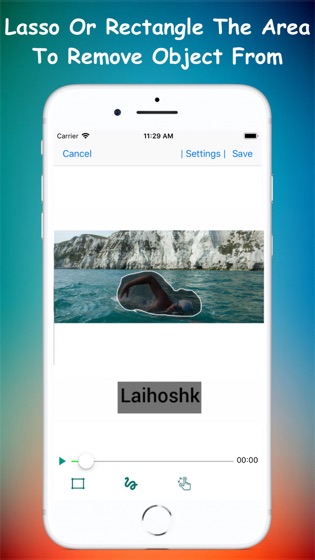
After selection you are you are taken to screen with preview and adjustable rectangle/lasso select with actions(specify more than 1 areas) to specify the unwanted object you want to remove.

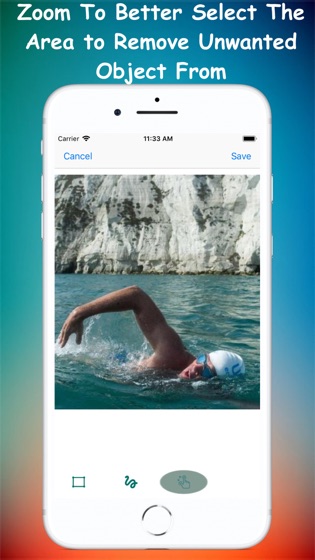
You can also choose zoom option and pinch with fingers to better select small objects.

Press Save button and wait for process to complete and view or share the results.

FAQ'S

How to get better result

When selecting an area, you can select it a bit larger, and completely cover the part you want to remove (including the shadow), which can help the algorithm achieve better results.

Will my videos/pictures be uploaded to any server?

No. app will process your images locally and will not upload to any server.

How to improve processing speed

In edit screen(where you specify watermark area and other components)

there is a gear icon on top right corner, you can use fast/very fast processing speed but output may be not very good, to improve output select default/slow/very-slow as processing speed

How this app works

In case of images this app always use A.I model to retouch, but in case of video depending on speed selected it suppress area by interpolation of the

surrounding pixels or use A.I model.

All exports are saved in 'REMOVE UNWANTED OBJECT' album