RoByte: Remote for Roku TV App
Control channel, volume, power
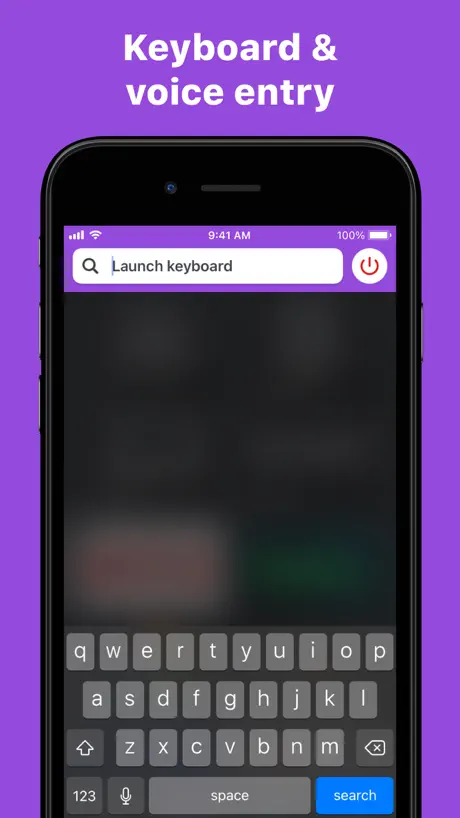
How much does RoByte: Remote for Roku TV App cost?
Prices are current as of 5 Oct 2026.
2 subscriptions from $2.99
In the United States, RoByte: Remote for Roku TV App has 2 subscriptions priced $2.99 – 23.99. It comes with a 3 days free trial.
| Subscription | Period | Price |
|---|---|---|
| RoByte Pro | MonthlyTrial: 3 days | $2.99 – 3.99 |
| RoByte Pro | AnnualTrial: 3 days | $19.99 – 23.99 |
4 one-time purchases from $0.99
In the United States, RoByte: Remote for Roku TV App has 4 one-time purchases priced $0.99 – 3.99.
| Product | Price |
|---|---|
| premium feature: Keyboard | $0.99 |
| premium feature: Channels | $1.99 |
| premium feature: Volume+Swipe | $1.99 |
| RoByte Premium | $3.99 |
See what RoByte: Remote for Roku TV App costs in all 175 countries →
10+ alternatives to RoByte: Remote for Roku TV App
| RoByte: Remote for Roku TV App | 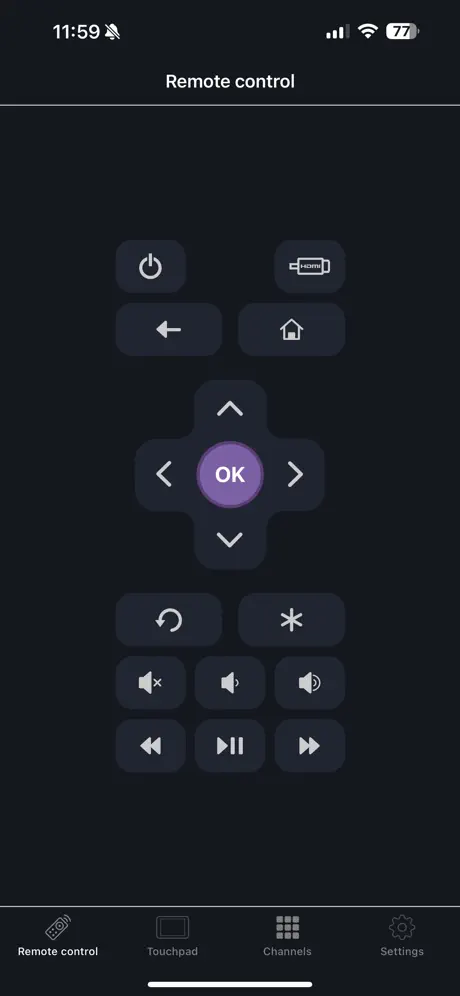  Rokie - Remote for Roku Player Rokie - Remote for Roku Player |   TV Remote & Universal Control™ TV Remote & Universal Control™ | 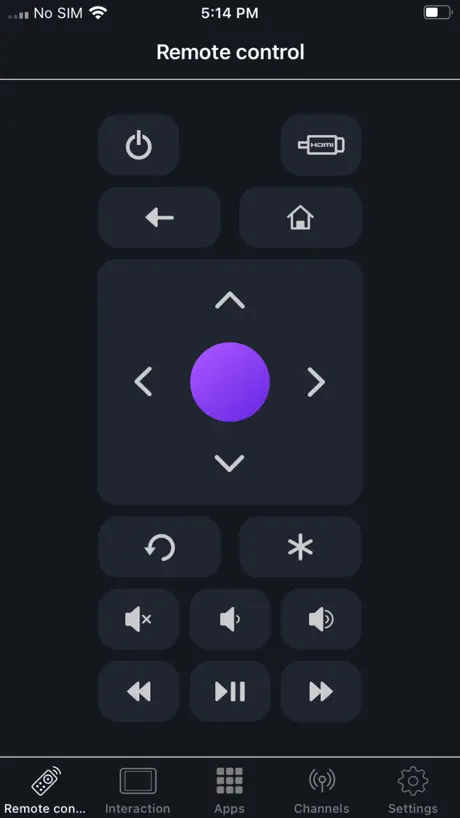  Reforo - Remote for Smart TV Reforo - Remote for Smart TV |   Universal remote for Roku tv Universal remote for Roku tv |   Rokumote : your TV Remote Rokumote : your TV Remote |   Universal Remote - Smart TV . Universal Remote - Smart TV . |   Remote Control for Roku TV ◦ Remote Control for Roku TV ◦ |   TV Remote for Roku · TV Remote for Roku · |   Remote for Roku TV & Channel Remote for Roku TV & Channel | 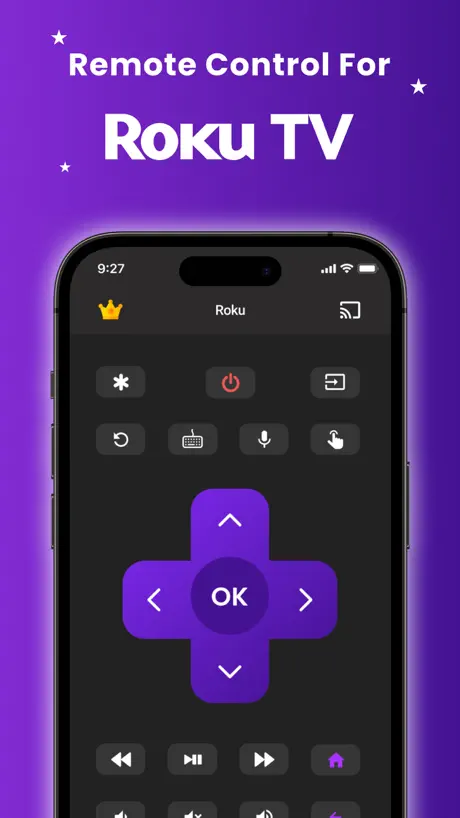  Remoku - Remote Controller Remoku - Remote Controller | |
|---|---|---|---|---|---|---|---|---|---|---|---|
| Rating / 5 | 4.5 | 4.5 | 4.7 | 4.5 | 4.4 | 4.4 | 4.5 | 4.6 | 4.5 | 4.6 | 4.5 |
| Reviews | 308K | 784K | 178K | 132K | 37K | 32K | 16K | 13K | 13K | 8.4K | 6.4K |
| Released | 2016 | 2015 | 2023 | 2017 | 2018 | 2016 | 2023 | 2023 | 2023 | 2022 | 2023 |
| Weekly price | — | $2.99 | $9.99 | $6.99 | $4.99 | $4.99 | $6.99 | $5.99 | $8.99 | $2.99 | $6.99 |
| Monthly price | $2.99 | $3.99 | — | $14.99 | $14.99 | $9.99 | $9.99 | $19.99 | $9.99 | $6.49 | $9.99 |
| Annual price | $19.99 | $19.99 | $39.99 | $39.99 | $19.99 | $19.99 | $39.99 | $29.99 | $39.99 | $29.99 | $34.99 |
| One-time price | $1.99 | $2.99 | — | $1.99 | $9.99 | $9.99 | $19.99 | — | $49.99 | $19.99 | $44.99 |
The going rate for each plan in United States, in its own currency, shaded from the cheapest price on the row to the dearest.
RoByte: Remote for Roku TV App reviews
4.5 out of 5, based on 307,664 reviews.
What people like
- Great backup when you lose your physical remote
- Simple and easy to use for basic controls
- Fun interface that works well on some devices
What they complain about
- Volume control often stops working after paying
- App frequently fails to connect to TV
- Basic features like typing are hidden behind paywall
It is bad
It is soooooo bad cause when I got my device connected it wouldn’t let press anything BRO?!
Doesn’t work
This app is so glitchy and problematic
Good product
The monetisations are a bit strange but well designed app overall.
Not worth the money
Paid for premium in order to type by keyboard and change volume like promised. Cannot do either of these things
Good product but the pro version doesn't support all Roku devices
The free version works completely fine with my Roku 3 (Telstra TV). However I thought the pro version would allow me to control volume for the Roku which certainly didn't work for my device hence the low rating. Maybe a note on the compatible devices would rather help future users.
Review
I really like this but is really annoying when you can’t type without paying
Mrs
It doesn’t work. Would like. A refund
Roku phone control
It works great but had to pay $2.99 for the volume setting and it takes your money and then let’s you know you can only use the volume setting if you have a Roku tv and doesn’t give you your money back.
Useless
Never connects to my Roku no matter what I do. It connects maybe once in a blue moon but that’s it.
Volume doesn’t work even when paying for upgrade a freezes we have to restart app
The volume dosent work on any devices even when we upgrade and it free and
Great work
This app is so fun and when I lose my remote
Roku is rubbish
Don’t bother to download. Tidy your sock draw instead.
Jo
Controls not that easy to use on phone
Don’t buy pro and it’s great
I loved this app until I bought the pro fir $6 aud. I wanted volume and power to work but instead the whole thing no longer works.
Very good app
Really good app
Wont connect to my roku
App wont connect to my roku 😭
This app is awesome!
Wish we could turn volume up and down though otherwise it is awesome definitely recommended. You can even annoy you siblings by playing with their tv with this app by simply connecting it to their tv lol love this.😂💜🦋
Remote
It is a lot easier I it is a lot easier with this appp
Disappointed
Very disappointed in this app. It was not easy to use and would not connect to my tv when I thought it had. I just wasted $5.99 on an app that won’t work
You shouldn’t need to pay
It’s a good app and all but you have to pay for my to favorite features and the reason I got the app: the keyboard and the volume. If they make it that you have to pay is pretty annoying. Other than that it’s good.
Love it as I never loose phone..
Works great...
Won’t work
Says my wifi not connected
This is.....EXTRORDIARY
Well not really but it’s amazing the only down part is I can’t finger out how to use volume even tho I brought premium but at the end of the day I give it a 9.5/10 :3 :) :D :p
Nicky L
Thought I’d have to buy a new remote after my dog ate it. Yes she actually ate it! Thankfully I found out I could simply download the Roku App and control my viewing from my phone! Can it get easier than that?!
Keep bugging for $$$
No volume or pro options Spend the money then nothing works 😡
Volume didn’t work
Hi I paid for volume button it’s didn’t work please return my money back please
Love it
Love it cause when u loss the remote you got your phone
Why
This is not working
Great backup
My remote died without warning 😖so it was great to be able to pick up my phone & continue watching telly🤓
Scam
After I used it my Netflix acc was compromised
Useless
Doesnt even have a volume control
shocking app
doesn’t worm unless you pay for it
RoByte: Remote for Roku TV App price by country
A monthly subscription costs $1.04 in Mexico and $4.55 in Hungary — 4× more for the same thing. Below is the going rate for each plan in every country that sells it — the middle price of what the app charges there, in the country's own currency with the dollar equivalent beneath it.
| Country | Monthly | Annual | One-time |
|---|---|---|---|
| Afghanistan | $2.99 | $19.99 | $1.99 |
| Albania | $3.99 | $22.99 | $1.99 |
| Algeria | $2.99 | $19.99 | $1.99 |
| Angola | $2.99 | $19.99 | $1.99 |
| Anguilla | $2.99 | $19.99 | $1.99 |
| Antigua And Barbuda | $2.99 | $19.99 | $1.99 |
| Argentina | $2.99 | $19.99 | $1.99 |
| Armenia | $3.99 | $22.99 | $1.99 |
| Australia | A$4.99$3.47 | A$29.99$20.83 | A$2.99$2.08 |
| Austria | €2.99$3.36 | €22.99$25.86 | €1.99$2.24 |
| Azerbaijan | $2.99 | $19.99 | $1.99 |
| Bahamas | $2.99 | $19.99 | $1.99 |
| Bahrain | $2.99 | $19.99 | $1.99 |
| Barbados | $3.99 | $22.99 | $1.99 |
| Belarus | $3.99 | $22.99 | $1.99 |
| Belgium | €2.99$3.36 | €22.99$25.86 | €1.99$2.24 |
| Belize | $2.99 | $19.99 | $1.99 |
| Benin | $3.99 | $22.99 | $1.99 |
| Bermuda | $2.99 | $19.99 | $1.99 |
| Bhutan | $2.99 | $19.99 | $1.99 |
| Bolivia | $2.99 | $19.99 | $1.99 |
| Bosnia & Herzegovina | €2.99$3.36 | €22.99$25.86 | €1.99$2.24 |
| Botswana | $2.99 | $19.99 | $1.99 |
| Brazil | R$14.90$2.85 | R$99.90$19.14 | R$12.90$2.47 |
| British Virgin Islands | $2.99 | $19.99 | $1.99 |
| Brunei Darussalam | $2.99 | $19.99 | $1.99 |
| Bulgaria | €3.49$3.93 | €19.99$22.49 | €1.99$2.24 |
| Burkina Faso | $2.99 | $19.99 | $1.99 |
| Cambodia | $2.99 | $19.99 | $1.99 |
| Cameroon | $3.99 | $22.99 | $1.99 |
| Canada | CA$3.99$2.81 | CA$24.99$17.60 | CA$2.99$2.11 |
| Cape Verde | $2.99 | $19.99 | $1.99 |
| Cayman Islands | $2.99 | $19.99 | $1.99 |
| Chad | $2.99 | $19.99 | $1.99 |
| Chile | CLP 2,990$3.03 | CLP 19,990$20.23 | CLP 1,990$2.01 |
| China | CN¥22.00$3.28 | CN¥148.00$22.06 | CN¥15.00$2.24 |
| Colombia | COP 14,900$4.50 | COP 99,900$30.19 | COP 9,900$2.99 |
| Congo | $2.99 | $19.99 | $1.99 |
| Congo, Democratic Republic | $2.99 | $19.99 | $1.99 |
| Costa Rica | $2.99 | $19.99 | $1.99 |
| Cote Divoire | $2.99 | $19.99 | $1.99 |
| Croatia | €2.99$3.36 | €22.99$25.86 | €1.99$2.24 |
| Cyprus | €2.99$3.36 | €22.99$25.86 | €1.99$2.24 |
| Czech Republic | CZK 79.00$3.64 | CZK 499.00$22.96 | CZK 49.00$2.25 |
| Denmark | DKK 29.00$4.36 | DKK 179.00$26.92 | DKK 19.00$2.86 |
| Dominica | $2.99 | $19.99 | $1.99 |
| Dominican Republic | $2.99 | $19.99 | $1.99 |
| Ecuador | $2.99 | $19.99 | $1.99 |
| Egypt | EGP 74.99$1.44 | EGP 449.99$8.61 | EGP 99.99$1.91 |
| El Salvador | $2.99 | $19.99 | $1.99 |
| Estonia | €2.99$3.36 | €22.99$25.86 | €1.99$2.24 |
| Fiji | $2.99 | $19.99 | $1.99 |
| Finland | €2.99$3.36 | €22.99$25.86 | €1.99$2.24 |
| France | €2.99$3.36 | €22.99$25.86 | €1.99$2.24 |
| Gabon | $2.99 | $19.99 | $1.99 |
| Gambia | $2.99 | $19.99 | $1.99 |
| Georgia | $3.99 | $22.99 | $1.99 |
| Germany | €2.99$3.36 | €22.99$25.86 | €1.99$2.24 |
| Ghana | $3.99 | $22.99 | $1.99 |
| Greece | €2.99$3.36 | €22.99$25.86 | €1.99$2.24 |
| Grenada | $2.99 | $19.99 | $1.99 |
| Guatemala | $2.99 | $19.99 | $1.99 |
| Guinea-bissau | $2.99 | $19.99 | $1.99 |
| Guyana | $2.99 | $19.99 | $1.99 |
| Honduras | $2.99 | $19.99 | $1.99 |
| Hong Kong | HK$22.00$2.80 | HK$148.00$18.85 | HK$18.00$2.29 |
| Hungary | HUF 1,490$4.55 | HUF 8,990$27.44 | HUF 999$3.05 |
| Iceland | $3.99 | $22.99 | $1.99 |
| India | ₹299.00$3.10 | ₹1,999.00$20.74 | ₹199.00$2.06 |
| Indonesia | IDR 49,000$2.74 | IDR 349,000$19.48 | IDR 39,000$2.18 |
| Iraq | $2.99 | $19.99 | $1.99 |
| Ireland | €2.99$3.36 | €22.99$25.86 | €1.99$2.24 |
| Israel | ₪9.90$3.26 | ₪69.90$22.99 | ₪4.90$1.61 |
| Italy | €2.99$3.48 | €22.99$26.73 | €1.99$2.31 |
| Jamaica | $2.99 | $19.99 | $1.99 |
| Japan | ¥400$2.54 | ¥3,000$19.02 | ¥300$1.90 |
| Jordan | $2.99 | $19.99 | $1.99 |
| Kazakhstan | KZT 1,490.00$3.32 | KZT 9,990.00$22.26 | KZT 999.00$2.23 |
| Kenya | $3.99 | $22.99 | $1.99 |
| Kosovo | €2.99$3.36 | €22.99$25.86 | €1.99$2.24 |
| Kuwait | $2.99 | $19.99 | $1.99 |
| Kyrgyzstan | $2.99 | $19.99 | $1.99 |
| Lao Peoples Democratic Republic | $2.99 | $19.99 | $1.99 |
| Latvia | €2.99$3.36 | €22.99$25.86 | €1.99$2.24 |
| Lebanon | $2.99 | $19.99 | $1.99 |
| Liberia | $2.99 | $19.99 | $1.99 |
| Libya | $2.99 | $19.99 | $1.99 |
| Lithuania | €2.99$3.36 | €22.99$25.86 | €1.99$2.24 |
| Luxembourg | €2.99$3.36 | €22.99$25.86 | €1.99$2.24 |
| Macao | $2.99 | $19.99 | $1.99 |
| Macedonia | $2.99 | $19.99 | $1.99 |
| Madagascar | $2.99 | $19.99 | $1.99 |
| Malawi | $2.99 | $19.99 | $1.99 |
| Malaysia | MYR 14.90$3.65 | MYR 99.90$24.49 | MYR 9.90$2.43 |
| Maldives | $2.99 | $19.99 | $1.99 |
| Mali | $2.99 | $19.99 | $1.99 |
| Malta | €2.99$3.36 | €22.99$25.86 | €1.99$2.24 |
| Mauritania | $2.99 | $19.99 | $1.99 |
| Mauritius | $2.99 | $19.99 | $1.99 |
| Mexico | MX$19.00$1.04 | MX$149.00$8.19 | MX$39.00$2.14 |
| Micronesia | $2.99 | $19.99 | $1.99 |
| Moldova | $3.99 | $22.99 | $1.99 |
| Mongolia | $2.99 | $19.99 | $1.99 |
| Montenegro | €2.99$3.36 | €19.99$22.49 | €1.99$2.24 |
| Montserrat | $2.99 | $19.99 | $1.99 |
| Morocco | $2.99 | $19.99 | $1.99 |
| Mozambique | $2.99 | $19.99 | $1.99 |
| Myanmar | $2.99 | $19.99 | $1.99 |
| Namibia | $2.99 | $19.99 | $1.99 |
| Nauru | $2.99 | $19.99 | $1.99 |
| Nepal | $2.99 | $19.99 | $1.99 |
| Netherlands | €2.99$3.36 | €22.99$25.86 | €1.99$2.24 |
| New Zealand | NZ$4.99$2.92 | NZ$39.99$23.39 | NZ$3.99$2.33 |
| Nicaragua | $2.99 | $19.99 | $1.99 |
| Niger | $2.99 | $19.99 | $1.99 |
| Nigeria | NGN 1,800.00$1.35 | NGN 10,900.00$8.19 | NGN 3,200.00$2.40 |
| Norway | NOK 39.00$4.05 | NOK 249.00$25.88 | NOK 29.00$3.01 |
| Oman | $2.99 | $19.99 | $1.99 |
| Pakistan | PKR 900$3.24 | PKR 4,900$17.66 | PKR 500$1.80 |
| Palau | $2.99 | $19.99 | $1.99 |
| Panama | $2.99 | $19.99 | $1.99 |
| Papua New Guinea | $2.99 | $19.99 | $1.99 |
| Paraguay | $2.99 | $19.99 | $1.99 |
| Peru | PEN 12.90$3.73 | PEN 79.90$23.09 | PEN 9.90$2.86 |
| Philippines | ₱179.00$2.86 | ₱999.00$15.95 | ₱129.00$2.06 |
| Poland | PLN 14.99$3.84 | PLN 99.99$25.64 | PLN 9.99$2.56 |
| Portugal | €2.99$3.36 | €22.99$25.86 | €1.99$2.24 |
| Qatar | QAR 9.99$2.74 | QAR 69.99$19.23 | QAR 7.99$2.20 |
| Romania | RON 14.99$3.16 | RON 99.99$21.05 | RON 9.99$2.10 |
| Russia | RUB 249.00$2.97 | RUB 1,750.00$20.88 | RUB 199.00$2.37 |
| Rwanda | $2.99 | $19.99 | $1.99 |
| Sao Tome & Principe | $2.99 | $19.99 | $1.99 |
| Saudi Arabia | SAR 12.99$3.46 | SAR 89.99$24.00 | SAR 9.99$2.66 |
| Senegal | $2.99 | $19.99 | $1.99 |
| Serbia | €2.99$3.36 | €22.99$25.86 | €1.99$2.24 |
| Seychelles | $2.99 | $19.99 | $1.99 |
| Sierra Leone | $2.99 | $19.99 | $1.99 |
| Singapore | SGD 3.98$3.11 | SGD 29.98$23.42 | SGD 2.98$2.33 |
| Slovakia | €2.99$3.36 | €22.99$25.86 | €1.99$2.24 |
| Slovenia | €2.99$3.36 | €22.99$25.86 | €1.99$2.24 |
| Solomon Islands | $2.99 | $19.99 | $1.99 |
| South Africa | ZAR 59.99$3.60 | ZAR 399.99$24.01 | ZAR 39.99$2.40 |
| South Korea | ₩4,400$3.27 | ₩29,000$21.57 | ₩3,300$2.45 |
| Spain | €2.99$3.36 | €22.99$25.86 | €1.99$2.24 |
| Sri Lanka | $2.99 | $19.99 | $1.99 |
| St. Kitts and Nevis | $2.99 | $19.99 | $1.99 |
| St. Lucia | $2.99 | $19.99 | $1.99 |
| St. Vincent & The Grenadines | $2.99 | $19.99 | $1.99 |
| Suriname | $2.99 | $19.99 | $1.99 |
| Swaziland | $2.99 | $19.99 | $1.99 |
| Sweden | SEK 39.00$3.88 | SEK 249.00$24.80 | SEK 29.00$2.89 |
| Switzerland | CHF 3.00$3.62 | CHF 20.00$24.15 | CHF 2.00$2.42 |
| Taiwan | NT$90.00$2.82 | NT$690.00$21.65 | NT$60.00$1.88 |
| Tajikistan | $2.99 | $19.99 | $1.99 |
| Tanzania | TZS 9,200.00$3.47 | TZS 55,900.00$21.11 | TZS 5,900.00$2.23 |
| Thailand | THB 99.00$2.95 | THB 699.00$20.82 | THB 79.00$2.35 |
| Tonga | $2.99 | $19.99 | $1.99 |
| Trinidad and Tobago | $2.99 | $19.99 | $1.99 |
| Tunisia | $2.99 | $19.99 | $1.99 |
| Turkey | TRY 89.99$1.83 | TRY 549.99$11.19 | TRY 99.99$2.03 |
| Turkmenistan | $2.99 | $19.99 | $1.99 |
| Turks and Caicos | $2.99 | $19.99 | $1.99 |
| Uganda | $3.99 | $22.99 | $1.99 |
| Ukraine | $3.99 | $22.99 | $1.99 |
| United Arab Emirates | AED 12.99$3.54 | AED 79.99$21.80 | AED 7.99$2.18 |
| United Kingdom | £2.99$3.96 | £19.99$26.44 | £1.99$2.63 |
| United States | $2.99 | $19.99 | $1.99 |
| Uruguay | $2.99 | $19.99 | $1.99 |
| Uzbekistan | $2.99 | $19.99 | $1.99 |
| Vanuatu | $2.99 | $19.99 | $1.99 |
| Venezuela | $2.99 | $19.99 | $1.99 |
| Vietnam | ₫79,000$3.04 | ₫499,000$19.23 | ₫59,000$2.27 |
| Yemen | $2.99 | $19.99 | $1.99 |
| Zambia | $2.99 | $19.99 | $1.99 |
| Zimbabwe | $3.99 | $22.99 | $1.99 |
RoByte: Remote for Roku TV App FAQ
- Is RoByte: Remote for Roku TV App free?
- Yes. The app and its basic features are free, in all 175 countries it sells in. Premium features are paid: they start from $2.99 (US), across 2 subscriptions and 4 one-time purchases.
- How much does RoByte: Remote for Roku TV App cost per month?
- RoByte Pro is $2.99 – 3.99 (US). The annual plan works out cheaper per month: $19.99 – 23.99 a year.
- Does RoByte: Remote for Roku TV App have a free trial?
- Yes — a 3 days free trial (US).
- Where is RoByte: Remote for Roku TV App cheapest?
- A monthly subscription costs MX$19.00 (≈$1.04) in Mexico and HUF 1,490 (≈$4.55) in Hungary, its cheapest and dearest countries.
- What are the best alternatives to RoByte: Remote for Roku TV App?
- Rokie - Remote for Roku Player (4.5 from 783,872 reviews, premium from $2.99), TV Remote & Universal Control™ (4.7 from 177,942 reviews, premium from $3.99) and Reforo - Remote for Smart TV (4.5 from 132,335 reviews, premium from $1.99).
RoByte: Remote for Roku TV App download
Last updated 2 months ago.
RoByte: Remote for Roku TV App sells in 175 countries. It was released 10 years and 5 months ago, on 11 Apr 2016. It holds a 4.5 rating from 307,664 reviews.
Supports 1 language: English.
How much does RoByte: Remote for Roku TV App make?
Third-party estimates for the last 30 days, worldwide — not the store's own figures, which Apple publishes for nobody.
Revenue by plan
- One-time 61%
- Monthly 27%
- Annual 13%
Revenue by country
- United States 91%
- United Kingdom 3%
- Australia 2%
- Canada 2%